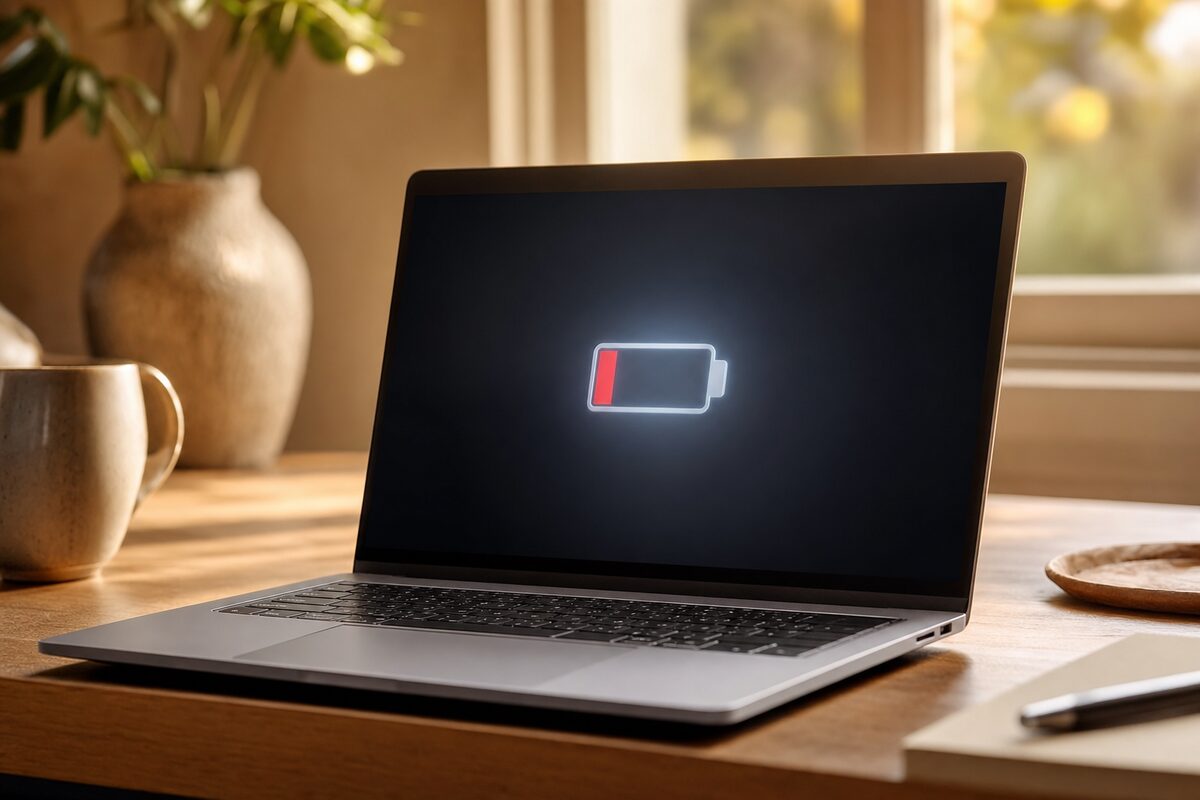
You charged your laptop overnight. By lunchtime the battery icon is already creeping into the red. You assume the battery is worn out, start pricing up replacements, and resign yourself to always sitting near a plug socket. Sound familiar?
Here's the thing: in most cases the battery itself is absolutely fine. The real culprit is a single Windows power setting that Microsoft, rather unhelpfully, sometimes changes quietly during a routine update — and almost nobody notices.
The Setting Nobody Talks About: Your Power Plan
Windows manages how hard your laptop works through something called a Power Plan. There are several built-in options, but the one that causes the most mischief is called High Performance (or, on newer Windows 11 machines, Best Performance).
When this mode is active, your laptop behaves as if it's constantly running a demanding task — keeping the processor at high speed, the screen at full brightness, and background processes firing at full tilt — even when you're doing nothing more taxing than reading an email. It's like leaving your car engine revving at 4,000 rpm while parked outside the supermarket.
A major Windows feature update — the kind that installs automatically in the background — can silently switch you onto this setting. You wouldn't know. Your laptop just starts running hotter and dying faster, and you blame the battery.
How to Check Your Power Plan Right Now
This takes about thirty seconds:
- Click the Start button and type Power plan into the search bar.
- Click "Choose a power plan" from the results.
- Look at which plan is currently selected (the filled dot next to it).
- If it says High Performance or Best Performance, that's your problem right there.
- Switch it to Balanced — Microsoft's recommended setting for laptops — and click away.
That's genuinely it. Many people report an extra two to three hours of battery life from this one change alone.
But Wait — What About 'Balanced' vs 'Power Saver'?
You might wonder: if Balanced is better than High Performance, surely Power Saver is even better for the battery? In theory, yes — but in practice, Power Saver throttles your processor so aggressively that your laptop can feel sluggish and unresponsive. Web pages load slowly, apps take longer to open, and the whole experience becomes frustrating. Balanced is the sweet spot: it lets the processor speed up when you actually need it and quietly slows down when you don't.
The only time High Performance makes sense on a laptop is if it's always plugged in and you're running something genuinely demanding — video editing, a large spreadsheet, or a long software compilation. For everyday use, unplugged or not, Balanced wins every time.
Three Other Quick Wins for Better Battery Life
While you're in the mood for a quick tune-up, these settings are all worth a look:
- Screen brightness: The display is the single biggest power drain on any laptop. Dropping brightness from 100% to around 60–70% can add a surprising amount of time to your battery. Use the keyboard shortcut (usually Fn + a brightness key) or drag the slider in the Quick Settings panel (Windows key + A).
- Background apps: Go to Settings → Apps → Startup and turn off anything you don't recognise or don't need running the moment you log in. Each one nibbles away at battery and slows your startup too.
- Battery Saver mode: Windows has a built-in Battery Saver that kicks in automatically below a certain percentage. You can set this threshold yourself — Settings → System → Power & Battery → Battery Saver — and tell it to activate at, say, 30% rather than the default 20%. It dims the screen slightly and pauses non-essential background activity.
When the Battery Really Is the Problem
Of course, batteries do genuinely wear out. Lithium-ion cells — the type in every modern laptop — gradually lose their ability to hold a full charge after several hundred charge cycles. A three-year-old laptop used daily has probably completed 400–600 cycles, and at that point you might genuinely be down to 70–80% of the original battery capacity.
Windows actually has a built-in tool to check this. Open a Command Prompt (search for cmd in the Start menu), type powercfg /batteryreport and press Enter. It will generate a detailed HTML report saved to your user folder — open it in a browser and look for the Design Capacity vs Full Charge Capacity figures. If your full charge capacity is below 60–65% of the original design capacity, it's genuinely time to think about a battery replacement.
The good news: in most laptops, a battery swap is a straightforward repair and far cheaper than buying a new machine. A laptop repair like this typically takes under an hour and gives the machine a new lease of life.
The Practical Takeaway
Before you spend a penny on a new battery — or, worse, a whole new laptop — spend thirty seconds checking your Power Plan. Switch it to Balanced, nudge your brightness down, and run the battery report. In most cases, those three steps will transform a laptop that felt like it was on its last legs into one that comfortably gets through a working day again.
It's one of those fixes that feels almost too simple to be true. But it works, and it's free.