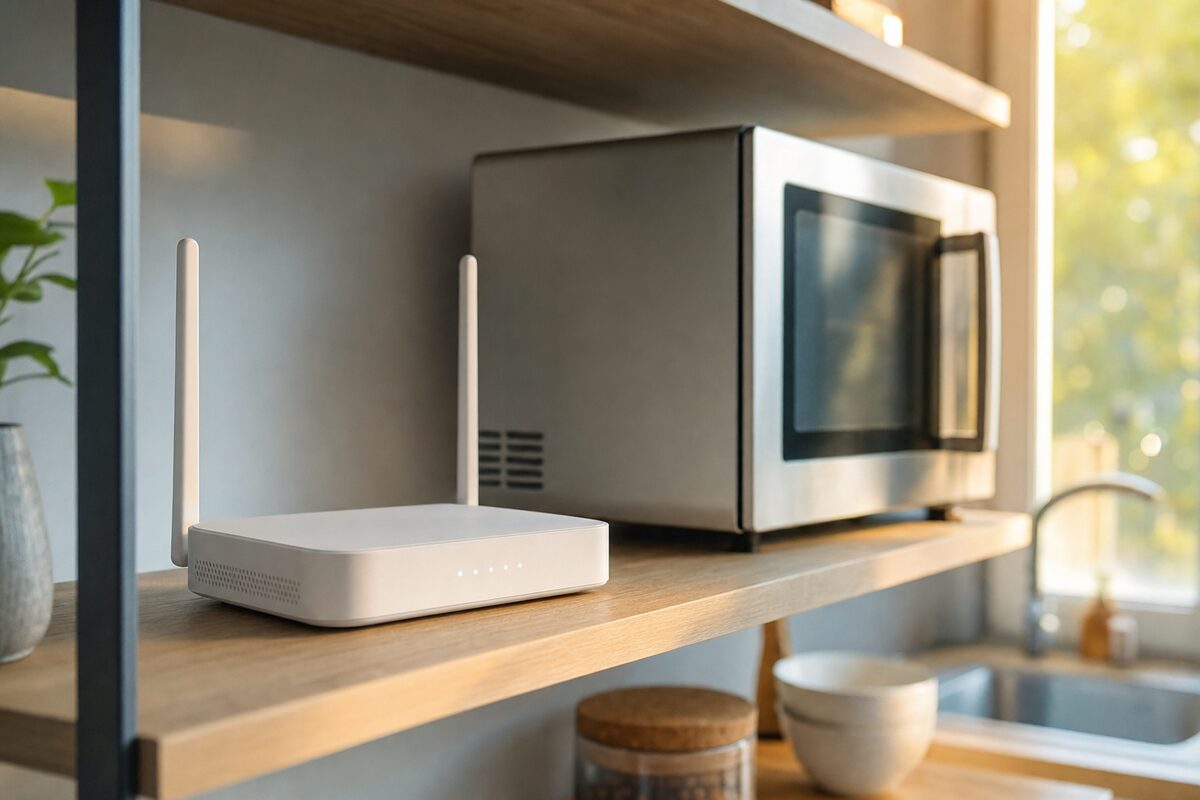
A customer came in last year absolutely convinced her broadband provider was throttling her connection. Every afternoon, around three o'clock, her video calls would stutter and her Wi-Fi would drop for a minute or two before recovering. She'd phoned her ISP twice. They'd run line tests, found nothing, and sent her a new router. Same problem, same time every day.
The culprit? Her microwave. Three o'clock was when she made a snack. The microwave sat two metres from her router, and every time it ran, it flooded the 2.4 GHz radio band and knocked her connection sideways.
This sort of thing is more common than most people realise — and once you know what to look for, you can often fix it yourself in about five minutes.
Why Your Wi-Fi Has an Invisible Enemy
Most home routers broadcast on two separate frequency bands: 2.4 GHz and 5 GHz. The 2.4 GHz band travels further and passes through walls more easily, so a lot of devices latch on to it by default. The problem is that 2.4 GHz is also used by a surprisingly long list of other things in your home:
- Microwave ovens (a big one — they leak radio energy at almost exactly this frequency)
- Baby monitors
- Cordless phones (the older DECT ones especially)
- Bluetooth devices
- Neighbouring routers — your next-door neighbour's Wi-Fi can genuinely interfere with yours
- Wireless doorbells and smart plugs
When multiple things compete for the same slice of radio spectrum at the same time, your Wi-Fi loses. It's a bit like trying to have a conversation at a noisy party — the signal is there, but it keeps getting drowned out.
The Easy Fix: Switch to 5 GHz
Modern routers — anything bought in the last five or six years — broadcast on both 2.4 GHz and 5 GHz simultaneously. The 5 GHz band is far less congested because fewer household devices use it, and it's much less susceptible to interference from things like microwaves.
The trade-off is range: 5 GHz doesn't travel quite as far or punch through thick walls as well. But if you're sitting in the same room as your router, or within ten metres of it, 5 GHz will almost always give you a faster, more stable connection.
To switch, look at the Wi-Fi networks listed on your phone or laptop. Many routers broadcast two networks with slightly different names — something like HomeWifi and HomeWifi_5G. Connect to the one with 5G or 5GHz in the name and see if the drops stop.
If your router only shows one network name for both bands (called band-steering), you may need to log into your router's settings to separate them. Your ISP's support page will usually walk you through this — or pop in and we can take a look.
Other Things Worth Checking
If switching bands doesn't solve it, here are a few more things to try:
- Move your router away from the microwave. Even a metre of extra distance can make a real difference. Never put your router inside a cupboard or on the floor — height and open air help enormously.
- Change your Wi-Fi channel. On 2.4 GHz there are 13 channels, but most routers default to channel 1, 6, or 11 — the same ones your neighbours are probably using. Log into your router and try a different channel. Free apps like WiFi Analyzer (Android) can show you which channels are least congested in your area.
- Restart the router properly. Not just turning it off and on, but leaving it unplugged for a full 30 seconds. Routers accumulate small errors over weeks of continuous use, and a proper cold restart often clears them.
- Check for firmware updates. Router manufacturers quietly release updates that fix bugs and improve stability. Most modern routers update themselves, but it's worth checking — usually found in the router's admin page under Advanced or Maintenance.
- Consider a mesh system or a powerline adapter. If the issue is that your router simply can't reach one end of the house, a second access point or a powerline kit (which carries your internet signal through your house's electrical wiring) can transform things.
When It Really Is Your Broadband
Sometimes the connection genuinely is dropping at the exchange or on the line coming into your house — not interference at all. A quick way to tell the difference: plug a laptop directly into your router with an ethernet cable and run a speed test at fast.com or speedtest.net. Do this when the problem normally happens.
If the wired connection is rock-solid during the drop, the problem is almost certainly Wi-Fi interference or your router. If the wired connection also stutters or shows a low speed, then the fault is further upstream — with your line, your ISP, or your router hardware itself.
Keep a note of the times it happens. ISPs take complaints much more seriously when you can say "it drops at 15:05 and 18:30 every day" rather than "it keeps going funny." That pattern also helps a repair shop or engineer diagnose things quickly.
The Practical Takeaway
Intermittent Wi-Fi problems are maddening because they seem random — but they rarely are. There's almost always a pattern, and usually a cause hiding in plain sight. Before you spend money on a new router or a lengthy call to your ISP, spend ten minutes experimenting: switch bands, move the router, unplug the microwave during a video call and see if it makes a difference.
The customer with the afternoon drop? She moved her router two shelves higher and connected her laptop to the 5 GHz network. The problem vanished the same day. No new equipment, no engineer visit, no cost. Just knowing where to look.