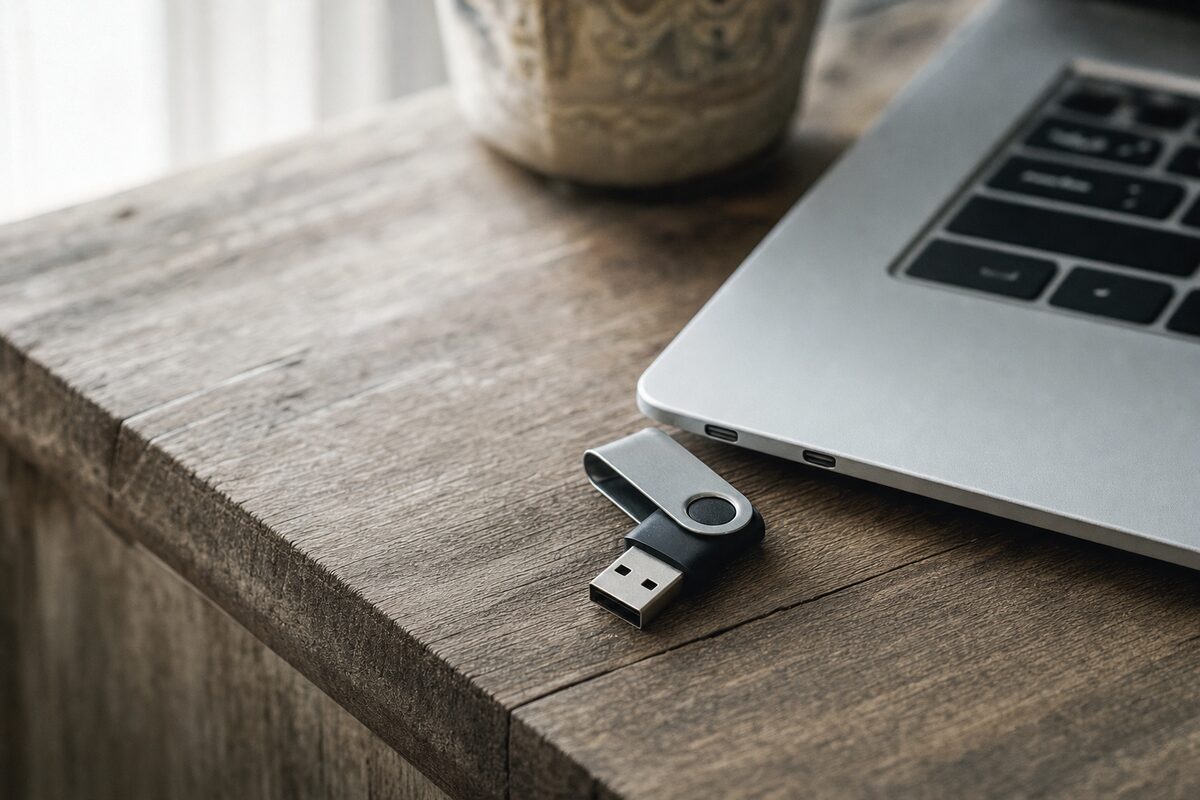
It comes in almost every week. Someone arrives at the counter holding a USB stick — sometimes a cheap promotional freebie, sometimes a branded one they've trusted for years — and they look genuinely baffled. "It was working fine," they say. "I saved the files, I saw them copy across. Now they're just... gone."
No error message. No warning. The drive still shows up in Windows. It still appears healthy. But the files are corrupt, missing, or simply won't open. If this sounds familiar, you're not alone — and you're not doing anything wrong. USB flash drives fail in a way that almost no other storage device does: silently and convincingly.
Why USB Sticks Lie to You
When you copy a file to a USB stick, Windows reports success the moment it's written to the drive's internal cache — a small buffer that holds data temporarily before committing it to the flash memory chips inside. If the drive is wearing out, those chips don't always store the data reliably. But Windows already declared the job done, so you see no error.
The result is a file that looks perfectly normal in Windows Explorer, has the right name, the right size, the right date — but when you try to open it, it's corrupted, blank, or simply won't launch. Some drives go further and start reporting wildly incorrect free space. You might have a 32 GB stick that claims to have 29 GB free — but won't actually save more than a few megabytes reliably.
This is especially cruel when the files in question are irreplaceable: a year's worth of family photos, a client proposal, coursework, accounts. The drive gave no indication anything was wrong right up until the moment it mattered most.
The Signs a USB Stick Is on Its Way Out
Flash storage doesn't last forever. Each memory cell can only be written to a finite number of times, and cheap drives often use lower-grade chips that wear faster. Watch out for these warning signs:
- Files that open as blank or corrupted — especially ones you saved recently and know were complete.
- Files that disappear between sessions — present one day, gone the next, without anyone deleting them.
- Unusually slow transfer speeds — a drive that used to copy quickly now crawls, or stalls partway through.
- Windows asking you to format the drive — this usually means the file system has become unreadable, often due to underlying chip failure.
- The drive appearing and disappearing — it shows up in File Explorer, then vanishes, then reappears when you wiggle it. This is a physical connection issue, but it also stresses the drive further.
- Incorrect capacity reported — a classic sign of a counterfeit or failing drive. If your 64 GB stick suddenly looks like it only has 2 GB of space, the chip is lying to Windows about its own size.
How to Check a USB Stick Before You Trust It
Windows has a built-in tool that can catch basic errors. Right-click the drive in File Explorer, choose Properties, go to the Tools tab, and click Check. This scans for file system errors and can fix some of them — but it's not foolproof. It checks the file system, not the underlying flash chips, so a drive can pass the check and still be silently failing at the hardware level.
For a more thorough test, a free tool called H2testw (Windows) or F3 (Mac/Linux) will write data across the entire drive and then read it back to verify it was stored correctly. This is the gold standard for catching fake-capacity drives and early chip wear. It takes a while — expect 20–60 minutes depending on drive size — but it's the only test that actually exercises the full storage area rather than just trusting the drive's own reporting.
If files are already missing or corrupted, tools like Recuva (free, Windows) can sometimes recover them — provided the drive is still readable enough to scan. The sooner you try, the better.
What You Should Never Use a USB Stick For
This is probably the most important section of this article. USB sticks are convenient, but they were never designed for long-term or sole-copy storage. Here's what to avoid:
- Your only copy of important files. A USB stick is a transport medium, not a backup. If the original file lives only on that stick, you have no backup at all.
- Running software directly from the drive. Applications that read and write constantly to a flash drive will wear it out very quickly.
- Long-term archiving. Flash memory loses its charge over time — a drive stored in a drawer for several years may not reliably read back what was written to it.
- Leaving it plugged in permanently. Heat and constant read/write activity from Windows indexing the drive in the background accelerates wear significantly.
If you need to move files between computers, USB sticks are fine. If you need to store something important, use them as one copy among several — not as the only copy.
So What Should You Use Instead?
For anything you genuinely can't afford to lose, consider a layered approach:
- An external hard drive or SSD as your local backup — kept at home, updated regularly.
- Cloud storage (OneDrive, Google Drive, iCloud) as a second, offsite copy that updates automatically.
- USB sticks for transferring files in the short term — but always with a copy kept elsewhere.
When a USB drive does fail with files still on it, all is not necessarily lost. Professional data recovery can retrieve files from drives that Windows can no longer read, provided the chips haven't degraded too far. The key is not to keep writing to a suspected failing drive — every new write risks overwriting the very data you're trying to recover.
The practical takeaway: treat every USB stick as a temporary carrier pigeon, not a filing cabinet. If a file matters, it needs to exist in at least two places — and a USB stick shouldn't be counted as one of them unless you have another copy somewhere else. Run H2testw on any new or suspect drive before you trust it with anything important. It takes an hour and could save you from a very bad afternoon.