Most people hear a strange noise from their computer, make a mental note to "deal with it later," and carry on. A few weeks pass. Then one morning the machine simply refuses to start, and everything — the photos, the documents, the years of emails — is gone.
We see this at the shop more often than we'd like. The heartbreaking part is that the computer almost always warned the owner first. It just did it in a language most people don't speak yet. This article is the translation guide.
Why Computers Make Noise in the First Place
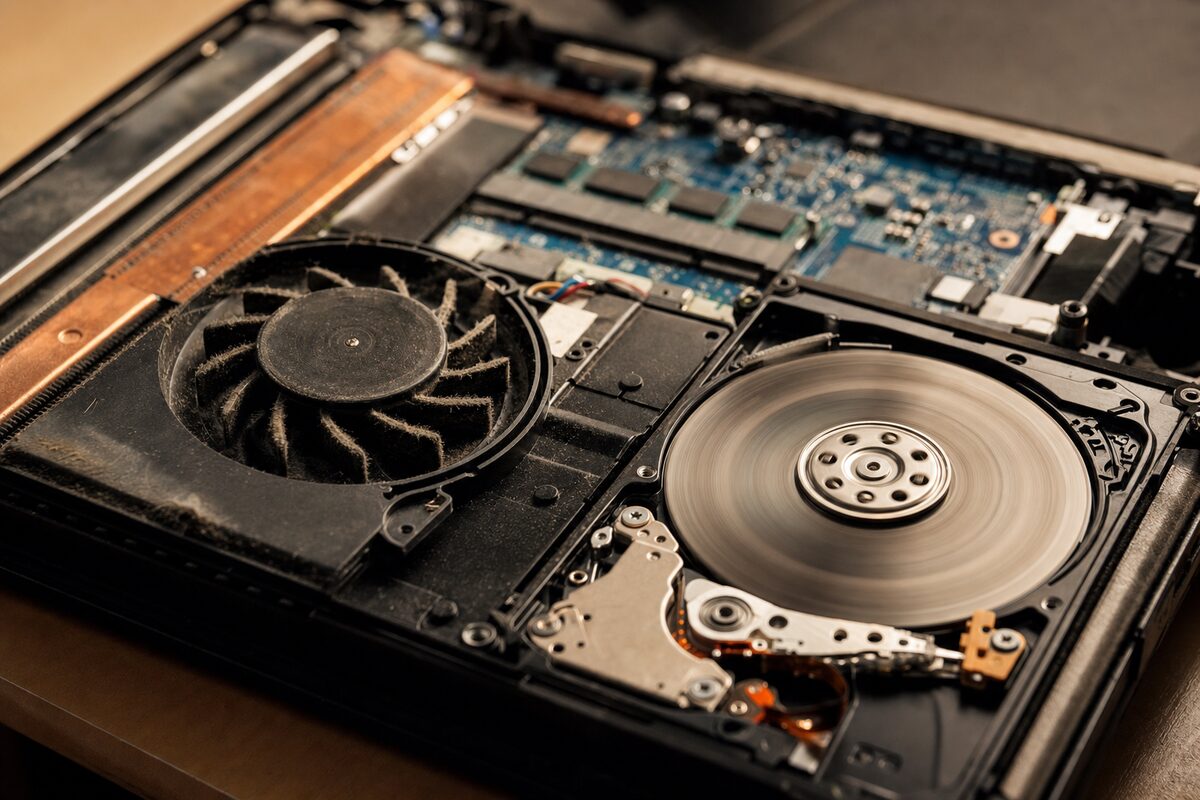
Modern computers have very few moving parts — really just two: a cooling fan and, in older machines, a spinning hard drive. (SSDs, the newer type of storage, have no moving parts at all and are completely silent.) Because there are so few things that can physically move, any new or unusual sound almost always points straight back to one of those two components.
That actually makes diagnosis easier than you might think. Once you know which noise belongs to which part, you're already halfway to understanding what's going on.
The Click of Death — and What It Really Means
A rhythmic clicking or ticking sound — sometimes described as a faint "tick-tick-tick" or a sharper "clunk-clunk" — coming from inside a laptop or desktop is the noise that gets repair technicians' attention immediately. It's informally called the "click of death," and the name is fairly earned.
It almost always means the hard drive's read/write head is struggling. Inside a traditional spinning hard drive, a tiny arm moves back and forth across a rapidly rotating magnetic platter — think of a record needle, but moving thousands of times per second. When the mechanism starts to fail, the head can't find its position and keeps resetting, producing that tell-tale click.
This is a serious warning. A clicking hard drive can fail completely within hours, days, or weeks — there's no reliable way to predict it. The right move is to stop using the machine for anything non-essential and back up your files immediately. If the drive fails before you do that, recovery becomes significantly more expensive and is never guaranteed.
If the drive is already clicking badly and you're not confident copying files yourself, a professional data recovery service gives you the best chance of getting everything off safely before the window closes.
Grinding: Even More Urgent Than Clicking
A grinding sound is a step beyond clicking — it often means the platters inside the drive are physically touching something they shouldn't be. At this stage, the drive can deteriorate with every second it's running. If you hear grinding:
- Save whatever you're working on immediately.
- Shut the computer down — don't just close the lid.
- Don't restart it to "see if it goes away."
- Get it looked at before powering it on again.
Running a grinding drive is a bit like driving on a completely flat tyre: every extra mile does more damage. The sooner it stops spinning, the better your chances of recovering the data.
Fan Noises: What's Normal and What Isn't
Fan noise is more nuanced. Fans are supposed to spin up when your computer is working hard — during video calls, editing photos, running Windows updates, and so on. A fan that kicks in briefly and then quietens down is doing exactly its job.
What's not normal is any of the following:
- Constant loud whirring even when you're not doing anything demanding — often a sign of overheating caused by dust buildup inside the machine.
- A rattling or buzzing fan — the bearing inside the fan is wearing out. Left alone, the fan can seize completely and your computer will overheat and shut itself off, or worse.
- A fan that's gone completely silent on a machine that used to make some fan noise — the fan may have stopped working entirely, which is just as dangerous as a noisy one.
Dust is the most common culprit behind fan problems. Over a few years, it builds up into a thick felt-like mat across the heatsink fins and the fan blades, insulating the very components that need to stay cool. A thorough internal clean can make a genuinely remarkable difference — machines that were throttling and shutting down under load often run quietly and quickly again afterwards.
If your laptop is running hot to the touch and the fan is screaming, don't wait. Sustained heat causes long-term damage to processors, graphics chips and motherboards. You can book a clean and check with us at Advantec in Tenterden, or have a look at our laptop repair page for more.
The Beeping Computer That Won't Boot
A separate category of noise worth knowing about: beep codes. If your computer makes a series of beeps during startup — before Windows has even loaded — that's not random. It's actually the motherboard's built-in diagnostic system telling you something specific has failed. Different patterns mean different things (RAM, graphics, CPU), and while decoding them is a job for a technician, the important thing to know is that it's a deliberate error message, not a fluke.
Don't keep trying to boot a beeping machine over and over. Note down the pattern (how many beeps, any pauses) and bring that information with you when you get it looked at — it'll save diagnostic time.
A Practical Checklist: What to Do When Your Computer Sounds Wrong
- Identify where the noise is coming from — front/bottom of the machine (likely hard drive) or vent area (likely fan).
- Note when it happens — always, only under load, only at startup?
- Back up straight away if you suspect a hard drive. Even just copying your most important files to a USB stick buys you insurance.
- Don't ignore it and hope it resolves itself. Mechanical noises in computers do not get better on their own.
- Get it diagnosed sooner rather than later — early intervention is almost always cheaper than emergency data recovery after the fact.
The good news is that most of these problems — a dying hard drive, a dusty fan, a failing bearing — are entirely fixable, especially when caught early. Upgrading an old spinning hard drive to a fast, silent SSD at the same time is often worth doing, and it'll make the machine feel like new in the process.
Your computer is trying to tell you something. It's worth listening.