Every summer, without fail, people bring laptops into the shop with the same complaint: "It was fine in winter, but now it's just painfully slow." Sometimes it shuts itself off without warning. Sometimes it takes three minutes to open a spreadsheet that used to snap open instantly. And almost every time, the answer is the same — heat.
What most people don't realise is that a slow, struggling laptop in warm weather isn't a coincidence. It's a deliberate act of self-preservation. And if you ignore it long enough, that self-preservation stops working.
What "Thermal Throttling" Actually Means
Your laptop's processor generates heat — quite a lot of it, especially when it's working hard. To keep itself from cooking, your laptop has a built-in failsafe: when the temperature climbs past a certain point, it deliberately slows the processor down to reduce heat output. This is called thermal throttling.
In a well-maintained machine, throttling kicks in only briefly and the cooling system quickly brings temperatures back down. But in a laptop with dusty, blocked vents or dried-out thermal paste, the processor can spend most of the day throttled — running at half speed or less — just to avoid a shutdown. That's why the machine feels sluggish even when you're doing nothing demanding.
The laptop isn't broken yet. It's telling you something is wrong. The question is whether you listen.
The Part Most People Have Never Heard Of
Between the processor and its metal heatsink sits a thin layer of thermal paste — a silvery, slightly gritty compound that transfers heat efficiently from the chip into the cooling system. It's about as glamorous as it sounds, but it's critically important.
When a laptop is new, this paste works perfectly. After three to five years, it dries out and cracks. When that happens, heat can no longer escape efficiently, and temperatures spike — even under light loads. Replacing thermal paste is a routine job in any repair workshop, takes about an hour, and can drop a processor's running temperature by 20–30°C. For a machine that was shutting down daily, that's often the difference between working and dead.
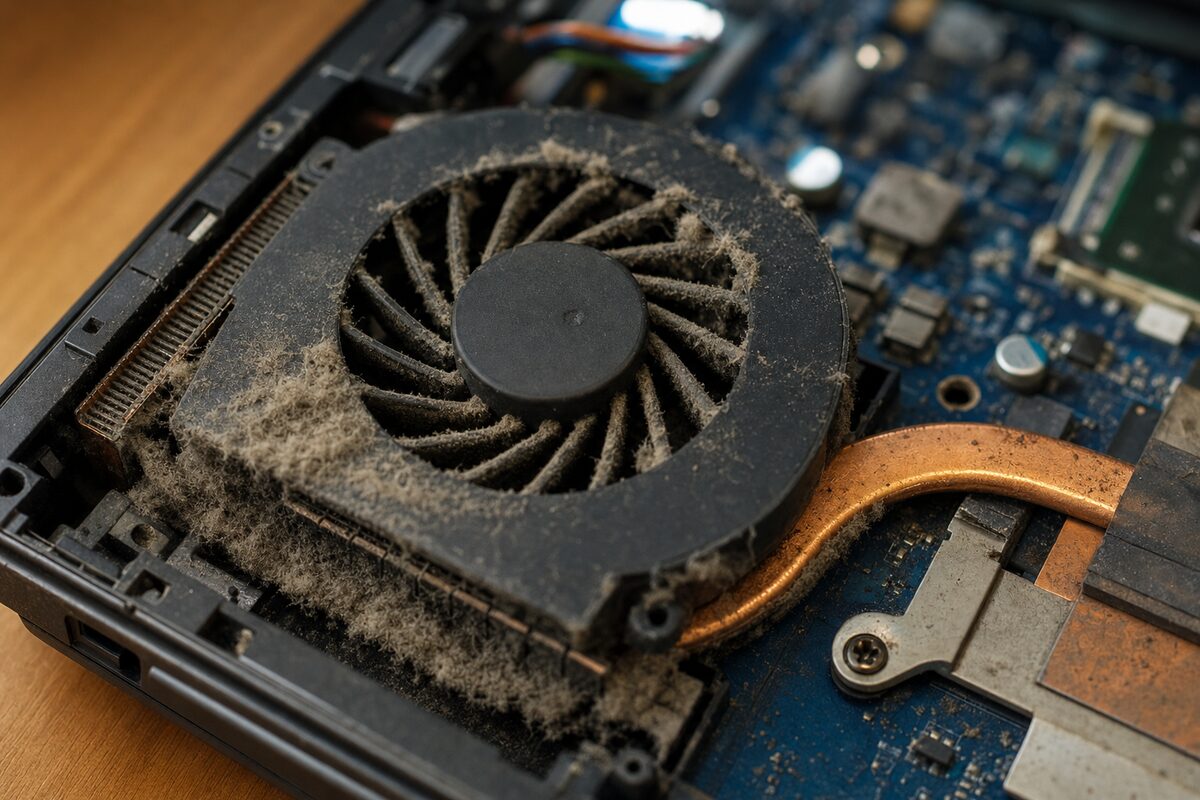
Dust is the other culprit. Most laptops pull cool air in through vents on the underside and exhaust hot air out through vents at the back or side. Over a couple of years, a thick mat of dust and fluff builds up inside — sometimes almost felt-like — blocking airflow almost completely. The fan spins frantically trying to push air through a wall of debris. It can't. Temperatures climb. Throttling kicks in. You wonder why your laptop is so slow.
The Warning Signs to Watch For
Overheating rarely announces itself dramatically. It usually creeps up. Here are the signs worth taking seriously:
- The fan runs constantly — even when you're just reading a webpage or writing an email, the fan is at full speed.
- The underside is uncomfortably hot — warm is fine; hot enough to be unpleasant on your lap is not.
- Performance dips at predictable times — the laptop is quick first thing, but slow and sluggish after 20 minutes of use as heat builds up.
- Unexpected shutdowns — particularly under load, like during a video call or when watching something. This is the processor hitting its absolute thermal limit and cutting power to protect itself.
- The machine is slow even with nothing open — this is a classic sign of sustained throttling.
Any one of these on its own is worth investigating. All of them together means act now, not next month.
What You Can Do Yourself — and What You Shouldn't
There are a few safe steps any laptop owner can take without touching a screwdriver:
- Never use it on soft surfaces. Using a laptop on a bed, sofa or cushion blocks the intake vents entirely. Always use it on a hard, flat surface — or better still, a stand that lifts it slightly off the desk.
- Keep it out of direct sunlight. A laptop sitting in a sunny patch by the window is already warm before it even does any work. In summer, this matters more than you'd think.
- Blow out the vents. A short blast of compressed air through the exhaust vents (the ones you can feel warm air coming out of) can dislodge dust from the fan blades. Don't use a household vacuum — static risk. Compressed air cans are a few pounds from any hardware shop.
- Check your power settings. On Windows, search for "Power plan" and make sure you're not permanently running on High Performance — this generates more heat unnecessarily for everyday tasks.
What you shouldn't do is open the laptop yourself to clean it properly unless you're confident doing so. Most modern laptops are fiddly to disassemble, and it's easy to crack a plastic clip, snap a ribbon cable or strip a tiny screw. A proper internal clean — with the fan removed and blown clear, the heatsink wiped, and fresh thermal paste applied — is a quick workshop job and the results are dramatic.
The Bit That Surprises Most People
Here's the thing we see regularly at Advantec Computing: a laptop that's been running hot for a long time doesn't always fail suddenly. It fails in slow motion. The processor copes, then copes less well, then starts occasionally corrupting data under load, then one day the solder joints on the chip — repeatedly expanded and contracted by years of heat cycles — give way. At that point, you're not looking at a £60 service. You're looking at a motherboard replacement or a recycling decision.
A laptop that's throttling and hot today is a laptop that may be genuinely unrepairable in eighteen months.
The thermal paste and a proper clean can cost less than a decent restaurant meal. The alternative can cost the machine. It's one of the most clear-cut value-for-money decisions in computing — which is probably why it still surprises people when we explain it.
If your laptop has been running hot, shutting down unexpectedly, or just feels slower than it used to — especially as the warmer months arrive — it's worth getting it looked at before the problem gets more expensive. A little preventive maintenance now can add years to a machine's life.