The customer — let's call her Margaret — was absolutely certain she wasn't doing anything wrong. She'd been using computers for years, she wasn't the type to accidentally delete things, and she definitely knew where she saved her files. Yet twice in the same month, documents she was sure she'd saved had simply vanished. Not moved to a different folder. Not hiding in the Recycle Bin. Just gone.
Her son had already told her the laptop was "probably fine" and that she must have forgotten to save. Margaret knew she hadn't. She brought it in anyway.
What She Thought Was Wrong
Margaret's working theory, understandably, was Windows. It had updated itself recently, as Windows loves to do, and the disappearing files had started around the same time. She'd also wondered whether her OneDrive sync had gone haywire — she'd heard stories about cloud sync eating files — and she half-suspected a virus, even though nothing else seemed out of place.
All of those are reasonable guesses. And in most cases with a symptom like this, one of them would be right.
What We Found on the Bench
The laptop was a mid-range Windows 11 machine, about three years old, with a 512 GB SSD that had been fitted as standard. Before touching anything else, we imaged the drive — took a full sector-by-sector copy — so that whatever happened next, her data was protected. That's always the first step when files are already going missing. You don't poke around in a burning building without a fire exit.
Initial diagnostics looked almost insultingly normal. The SSD's health, reported by the manufacturer's own tool, showed as "Good." SMART data — the built-in monitoring system that most drives use to flag problems — showed no errors, no reallocated sectors, nothing alarming. If you'd looked at that readout cold, you'd have closed the case and told the customer it was fine.
We didn't close the case. Instead, we ran an extended read/write verification test — writing a known pattern of data across the entire drive, then reading it back and comparing. That test takes a few hours. It found something the SMART data had completely missed: a small cluster of sectors near the middle of the drive that were writing data apparently successfully, but then returning different data on the read-back. Corrupted writes, with no error reported. The drive thought it had saved the data. It hadn't.
Why SSDs Can Fail Silently Like This
Hard drives — the old spinning-disk type — tend to fail loudly. Clicks, grinding, slowdowns. SSDs fail much more quietly, which makes them trickier. Most SSD faults are caught by SMART monitoring, but SMART was designed with spinning disks in mind and doesn't always translate perfectly to flash storage. Some faults — particularly around the flash cells themselves beginning to lose charge retention — can slip through for a while before SMART catches up.
In this case, the affected sectors happened to sit in a region of the drive that the operating system used fairly regularly for temporary and working files. Files being written there would sometimes save correctly, sometimes not. Whether a given save was affected was essentially random, which is why the problem felt so intermittent and baffling.
Margaret wasn't imagining it. She wasn't forgetting to save. The drive was lying to Windows, and Windows believed it.
How We Fixed It
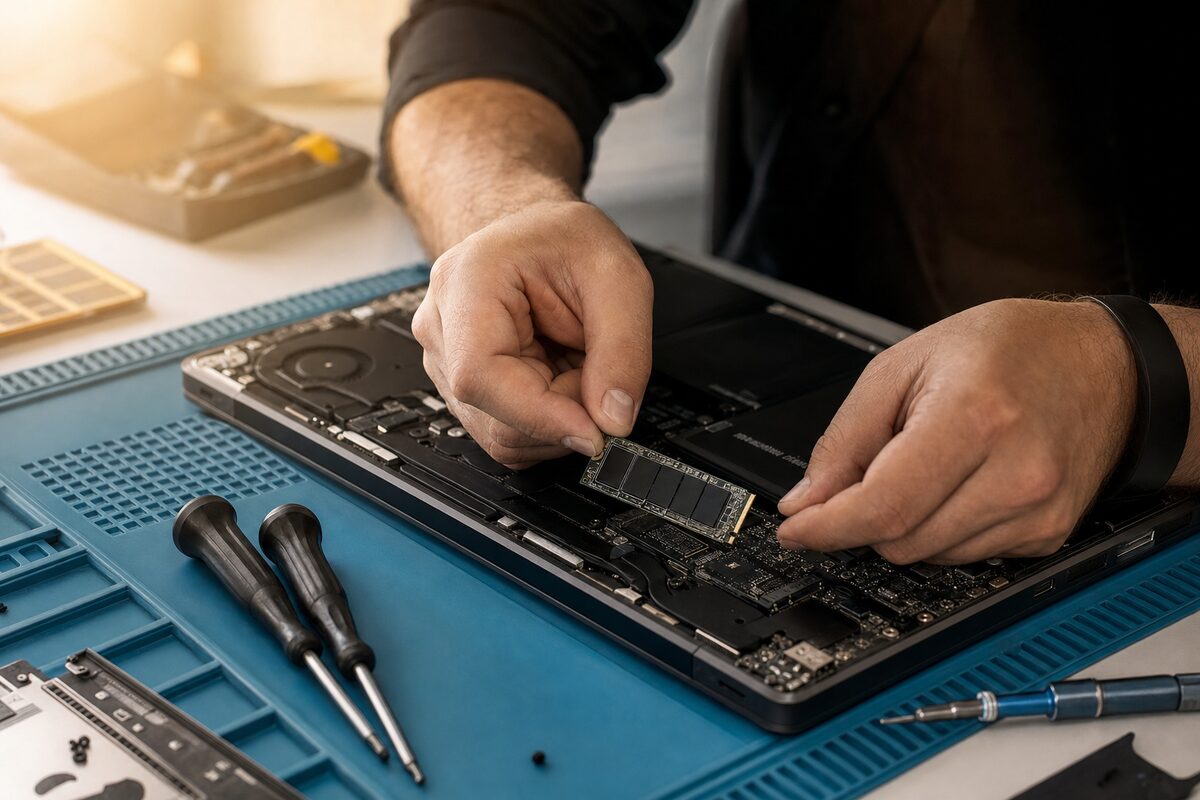
The answer here wasn't a repair in the traditional sense — you can't resolder flash memory cells — it was a controlled replacement. We fitted a new SSD, restored her data from the image we'd taken at the start, reinstalled Windows cleanly, and then transferred her files back across. The whole job took a day.
We also had a conversation about OneDrive, which she had set up but hadn't really configured properly. We made sure it was genuinely backing up her Documents and Desktop folders, so that if anything like this happened again, the files would still be sitting safely in the cloud. That five-minute tweak is probably the most valuable thing we did.
If you'd like to know more about what's involved in a job like this, our laptop repair service page gives a good overview, and if data is already at risk, our data recovery page explains how we approach that side of things.
The Practical Lesson
There are a few things worth taking away from Margaret's experience:
- Trust your instincts. If files are disappearing and you know you saved them, something is wrong. Don't let anyone dismiss that.
- SMART data isn't the whole story. A drive reporting "Good" is not the same as a drive that's actually working correctly. Extended verification tests catch things SMART misses.
- SSDs don't last forever. They're excellent — faster, quieter, and more reliable than old spinning drives in most ways — but after three to five years of heavy use, it's worth being aware that flash storage does age. Cells wear out.
- The image first, questions second. Never let anyone poke around a drive that's already losing data without taking a backup copy first. This is non-negotiable.
- Sync isn't the same as backup. OneDrive, Google Drive, Dropbox — they're brilliant, but they sync what's on your machine. If the machine corrupts a file, the cloud will dutifully sync the corrupted version. A proper backup strategy keeps older versions too.
Margaret went home with a laptop that was, for the first time in months, actually saving her files. She also went home with version history enabled in OneDrive, which means that even if something goes wrong again, she can roll back individual files to how they looked last Tuesday.
The lesson isn't "SSDs are bad." They're not. The lesson is: when something feels wrong with your computer, and you're not the sort of person who makes careless mistakes — believe yourself, and get it looked at properly.