A customer came in last autumn carrying a laptop under one arm and a look of quiet dread on his face. "It started making a sort of ticking noise," he said. "I thought it would just… stop." It didn't stop. And by the time he arrived, about a third of his files were already unreadable.
Hard drive noises are one of the most common things we see — and hear — on the workbench. The frustrating thing is that most people notice the sound days or even weeks before anything actually goes wrong, but they don't know whether to worry. So they wait. And sometimes, waiting is the one thing they shouldn't have done.
Here's a plain-English guide to what those noises actually mean, and what you should do the moment you hear them.
First: Is It Definitely the Hard Drive?
Before you panic, it's worth knowing that computers contain several moving parts that can produce unexpected noises. Laptop and desktop fans spin continuously and can produce humming, rattling or whirring sounds — particularly if they're clogged with dust. Optical drives (the DVD slot, if your machine still has one) can clunk and spin even when nothing is inserted. A loose screw or a cable vibrating against a fan blade can sound alarmingly like something far worse.
The way to narrow it down: listen carefully to where the sound is coming from. Hard drives in laptops are usually positioned toward one side or corner — often the front-left or front-right. In a desktop, they're typically mounted in the middle or lower section of the case. If the sound seems to pulse in time with disk activity — particularly when you open a file, start a programme or boot up — that's a much stronger sign it's storage-related.
The Sounds That Mean Trouble
Not every drive noise is catastrophic, but some are very serious indeed. Here's a rough guide:
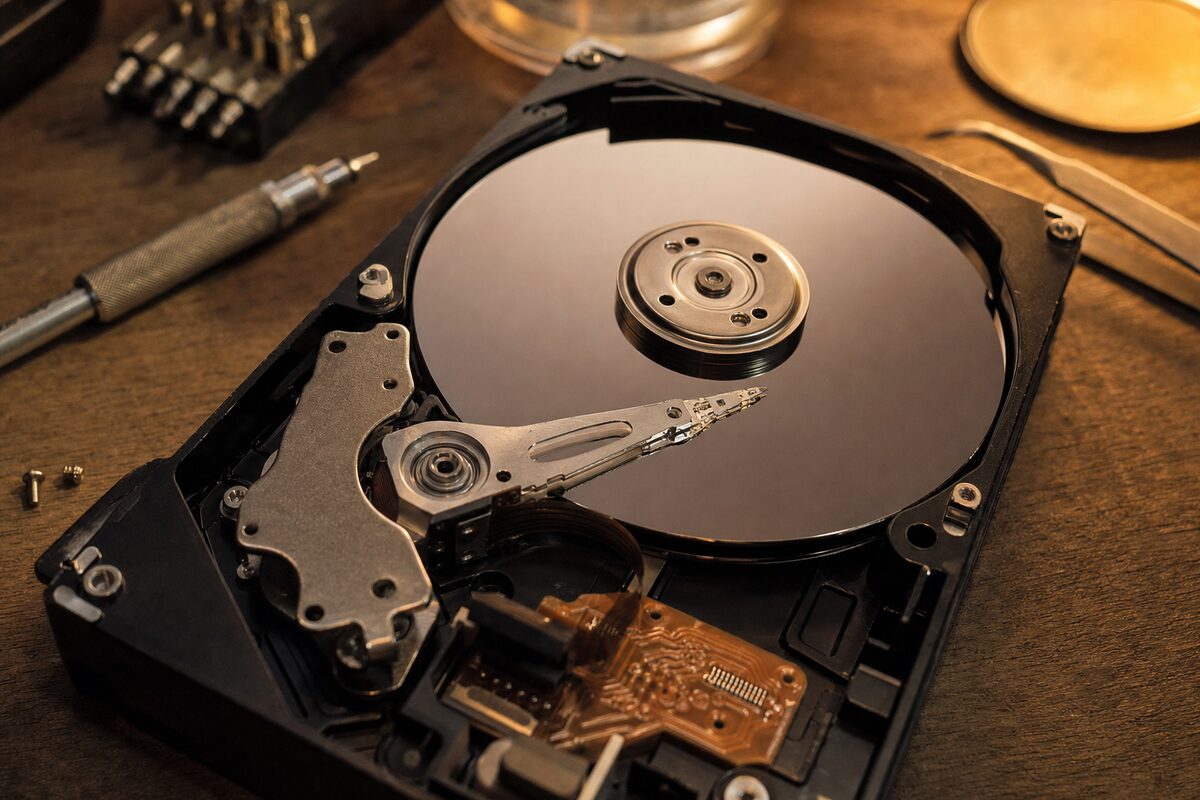
- Clicking or ticking (rhythmic, repeating): This is the one that should make you stop what you're doing. It's sometimes called the "click of death." It usually means the read/write head — the tiny arm that skims across the spinning platter — is failing to find its position and resetting itself over and over. This is a mechanical failure in progress. Data loss can follow quickly.
- Grinding or scraping: Even more serious. This often means the head has made physical contact with the platter surface — something it should never do. Files can be destroyed within minutes of this starting. If you hear this, power the machine off immediately.
- Loud, repetitive clunk (not a click — more of a thud): Can indicate the drive is struggling to spin up properly, or that a component inside has come loose. Either way, not good.
- High-pitched whine or squeal: Sometimes a sign of bearing wear — the internal mechanism that keeps the platter spinning smoothly. This can deteriorate over time and eventually cause the drive to seize.
- Soft, steady hum with occasional quiet clicks: Almost certainly normal. Hard drives make small clicking sounds during ordinary operation. If it's quiet and infrequent, it's usually nothing to worry about.
What About SSDs? They're Silent — But Not Immortal
Solid-state drives — the faster, lighter storage found in most laptops built in the last five or six years — have no moving parts, so they produce no noise at all. This is genuinely good news for reliability, but it also means you get no audible warning before they fail. SSD failures tend to be sudden: one day everything is fine, the next the machine won't boot and the drive simply isn't recognised.
If your machine has an SSD and you're worried about its health, there are free tools (like CrystalDiskInfo on Windows) that can read the drive's internal health data and give you a rough indication of how it's holding up. It's worth running this check every few months, especially on older machines. If you're not sure what type of storage your laptop has, we're happy to check — it takes about thirty seconds.
The Moment You Hear Something Wrong: Do This Now
If you hear clicking, grinding or any of the more alarming sounds described above, here's what to do — in order:
- Stop using the machine for anything non-essential. Every read and write operation puts additional stress on a failing drive. Don't install updates, don't run a scan, don't defragment.
- Back up your most important files immediately. Photos, documents, anything irreplaceable. Copy them to a USB stick, an external drive, or cloud storage — whichever is quickest. Don't wait until you've backed up everything perfectly; get the most important things off first.
- Do not run a repair tool or disk check on a mechanically failing drive. Tools like CHKDSK are useful for software-level errors, but running them on a physically damaged drive can actually make data recovery harder or impossible. Well-meaning instincts to "fix it" can destroy what's left.
- Bring it in as soon as you can. If the drive is still spinning and partially readable, a professional can often recover significantly more than if you wait for it to fail completely. Time genuinely matters here.
Can the Files Be Saved?
In many cases, yes — but it depends heavily on how far the failure has progressed. Drives that are clicking but still spinning often yield a high proportion of their data when handled carefully with the right tools. Drives that have been left running for days after making alarming noises, or where someone has repeatedly tried to boot from them, are much harder to work with.
At Advantec Computing in Tenterden, data recovery is something we handle regularly — from clicking laptop drives to SSDs that have stopped being recognised entirely. We'll always give you an honest assessment of what's recoverable before any work begins, and we won't charge you for a recovery that doesn't succeed.
The single most useful thing you can take from this: if your computer starts making a noise it didn't make before, don't put it off. Have it looked at. The cost of a check is nothing compared to the cost of losing years of photos, client records or work documents. Your drive may well have days left — but you'd rather not find out the hard way.