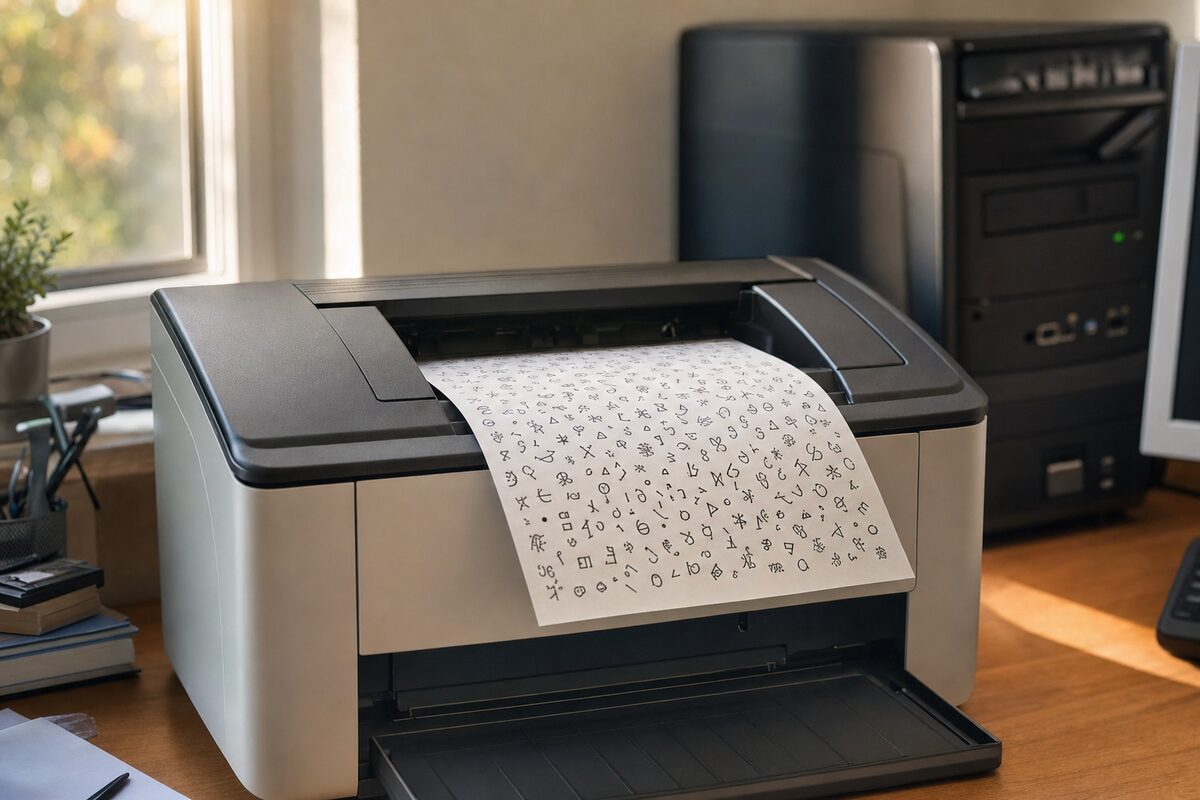
It's the kind of problem that makes you do a double-take. Margaret — a retired school administrator who runs a small village newsletter from home — came in one Tuesday morning carrying a printed page, a look of genuine bafflement on her face, and the opening line: "I think my printer's possessed."
She held up the sheet. Where her newsletter should have been — two neat columns of local news, a small photo of the church fête — there was instead a cascade of random characters. Symbols, partial ASCII art, what looked like fragments of a programming language nobody had ever intended to invent. Three pages of it, every time she tried to print.
She'd already replaced the printer cable. She'd turned everything off and on again. She'd even rung the printer manufacturer, who'd cheerfully suggested she buy a new printer. The printer, for the record, was only fourteen months old.
What She Thought Was Wrong
Margaret was convinced the printer itself had developed a fault — possibly a corrupted memory chip inside it, something she'd read about on a forum at 11pm and immediately regretted. She brought in both the printer and the PC, fully expecting us to tell her the printer was headed for the tip.
It's a reasonable assumption. When a printer produces garbled output, the printer is the obvious suspect. It's the thing doing the printing, after all.
What We Found First
The first thing we do in any situation like this is test the components in isolation. We connected Margaret's printer to a completely separate laptop, installed the driver fresh, and printed a test page. It came out perfectly. Clean, sharp, exactly right.
So the printer was fine. Good — that's one variable eliminated, and one slightly expensive mistake avoided.
Next we looked at the PC. It booted normally, Windows loaded without complaint, and the desktop looked exactly as she'd left it. We opened her newsletter file in the same software she used, hit print, and watched the printer dutifully produce another three pages of absolute nonsense.
Same PC. Same printer. Same cable she'd already replaced. Same document. Total gibberish.
The Actual Culprit — and It's Not What You'd Guess
When a printer receives garbled data from a PC, there are really only a few explanations: the wrong printer driver is installed, the driver has become corrupted, or something is interfering with the data between the software and the driver. We checked the installed driver first.
And there it was.
At some point in the previous few weeks, Windows Update had quietly replaced Margaret's printer driver with a generic Microsoft one — the kind Windows keeps in reserve when it can't find a better match. It's a well-meaning feature: Windows tries to keep your devices working even when the manufacturer's driver isn't available. The problem is that the generic driver for her particular printer model was sending it instructions in entirely the wrong format. The printer was receiving the data, trying its best, and producing the closest thing it could to what it was being told — which happened to look like the output of a confused 1980s mainframe.
The fix took about eight minutes. We uninstalled the generic driver completely, downloaded the correct manufacturer driver directly from the maker's website, installed it properly, and printed Margaret's newsletter. It came out perfectly — both columns, the church fête photo, everything.
Why Windows Does This (And Why It's Usually Fine)
Windows Update silently updating drivers is not, in itself, a bad thing. For most common devices — mice, keyboards, webcams, network adaptors — the generic drivers work perfectly well, and keeping them updated is genuinely useful. The problem arises with certain printers, particularly older or less mainstream models, where the generic driver and the manufacturer's driver speak subtly different languages. The printer doesn't get an error; it just gets instructions it can't quite interpret correctly.
It's the digital equivalent of someone giving you directions in almost-but-not-quite the right dialect. You follow them earnestly, and end up somewhere completely wrong.
This particular issue is more common than you might think. It tends to appear after a significant Windows Update — the kind that installs in the background overnight and reboots your machine before you've had your morning coffee. One day everything works; the next, the printer is suddenly producing art.
The Practical Lesson
If your printer suddenly starts producing garbled output — and nothing else has changed — don't assume the printer is broken before you've checked the driver. Here's a quick sequence worth trying:
- Test the printer on a different device. If it prints correctly elsewhere, the printer is almost certainly fine.
- Check which driver is installed. Go to Settings → Bluetooth & devices → Printers & scanners, select your printer, and look at the driver name. If it says something like "Microsoft IPP Class Driver" or "Generic" and your printer is a specific model, that's your culprit.
- Download the driver directly from the manufacturer. Don't rely on Windows to find the right one automatically. Go to the printer brand's website, find your exact model number, and download the full driver package.
- Uninstall the existing driver first. Don't just install the new one on top. Remove the old one cleanly, restart, then install fresh.
- If in doubt, don't buy a new printer yet. A replacement printer will almost certainly get the same generic driver — and produce the same gobbledygook.
Margaret left with her newsletter printing perfectly, fourteen months still on her printer's warranty, and the entirely reasonable opinion that Windows ought to ask before swapping out a driver that was working fine. She's not wrong.
If your printer — or anything else on your machine — is suddenly behaving in a way that makes no obvious sense, it's often worth getting a second opinion before spending money on replacements. The fault is rarely where it first appears. That's usually the most useful thing a local PC repair or laptop repair shop can offer: someone who's seen that particular flavour of strange before, and knows exactly where to look.