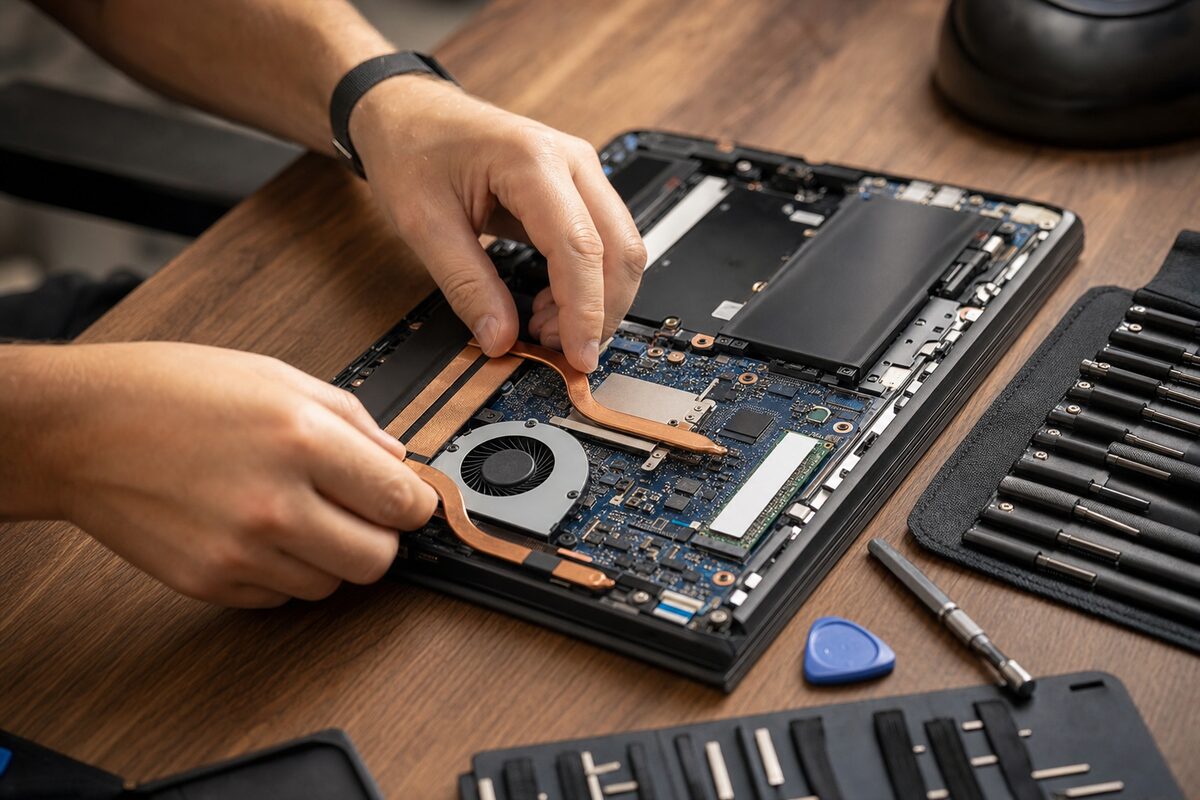
A customer brought in a laptop not long ago that had been running hot for the best part of two years. Warm to the touch, fan going like a hairdryer, occasionally shutting itself down mid-afternoon. She'd googled it, read that laptops run warm, and got on with her day. By the time it arrived with us, the processor was throttling itself to a fraction of its normal speed just to survive — and the thermal paste had turned to something resembling dry chalk dust.
The laptop was fine. Until it very suddenly wasn't.
Heat is the single most common cause of premature laptop death we see in the workshop, and it's almost entirely preventable. The tricky part is knowing the difference between heat that's completely normal and heat that's quietly causing damage every time you open the lid.
Why Laptops Get Hot in the First Place
Every processor, graphics chip and fast SSD generates heat as a basic byproduct of doing its job. Laptops are engineered to deal with this — there's a small fan, a copper heat pipe, and a tiny radiator grille that together pull heat away from the chips and push it out through a vent, usually on the side or the back.
The problem is that this system relies on airflow, and airflow relies on the vents being clear. It also relies on a thin layer of thermal paste — a slightly gooey, heat-conducting compound — sitting between the chip and the heat pipe. Over time, that paste dries out and stops doing its job. The fan has to spin harder. Temperatures climb. The processor starts deliberately slowing itself down to generate less heat. Your laptop, which once felt snappy, starts feeling sluggish for no obvious reason.
It's a slow creep. You don't notice it happening day by day. You just gradually stop using the laptop on your lap because it's uncomfortably warm, and you quietly accept that it's "got slower as it's got older." It hasn't aged — it's overheating.
The Signs That Heat Is Actually a Problem
Warmth alone isn't a red flag. A laptop doing real work — video calls, spreadsheets, a browser with fifteen tabs — will naturally get warm. What you're looking for is a pattern:
- The fan runs constantly, even when you're doing almost nothing — checking email or reading a webpage shouldn't need the fan at full speed.
- The laptop shuts down without warning — this is a thermal cutoff, a safety mechanism that kicks in when the chip hits a dangerous temperature. It's not a bug; it's the machine protecting itself.
- It's noticeably slower than it used to be — if the processor is throttling, everything feels sluggish. Pages take longer to load, apps take longer to open, and video calls start to stutter.
- The underside is painfully hot, not just warm — warm is fine. Hot enough that you pull your hand away is not.
- The vents are blowing barely any air — hold your hand near the exhaust vent. You should feel a decent push of warm air. If there's almost nothing, the fan is struggling.
What's Usually Causing It
In our experience, it comes down to one of three things — or sometimes all three at once:
Dust buildup. Laptop vents act like tiny hoovers. Over months and years, dust, fluff and pet hair accumulate on the fan blades and the internal radiator fins until airflow is almost completely blocked. This is by far the most common cause we see, and a proper internal clean makes a dramatic difference.
Dried-out thermal paste. On laptops that are three to five years old or more, the thermal paste between the processor and heat pipe often dries out and loses its ability to conduct heat effectively. Replacing it — a job that takes around an hour in the workshop — can drop running temperatures by 20°C or more and restore the snappiness the laptop had when it was new.
Where you're using it. Soft surfaces — duvets, sofas, cushions — block the intake vents underneath the laptop completely. The machine tries to pull in cool air and gets nothing. A hard, flat surface, or a simple £12 laptop stand, makes a genuine difference.
What You Can Do Right Now
There are a few things worth doing yourself before anything else:
- Check your surface. If you regularly use your laptop on a bed or sofa, switch to a hard surface or pick up a cheap lap desk. It sounds obvious, but it fixes the problem more often than you'd think.
- Listen to your fan. If it's running flat out while you're doing nothing intensive, that's a signal. Note when it happens and whether the laptop slows down at the same time.
- Check the exhaust vent. Can you feel warm air coming out? If you can't, the vent may be blocked. A careful blast from a can of compressed air into the vent (not a vacuum — you risk damaging the fan blades) can shift some surface dust.
- Don't use it on your lap if it's uncomfortably hot. Beyond damaging the laptop, sustained heat genuinely isn't good for you either.
What you can't easily do yourself is open the machine up, clean the internal fan and radiator properly, and replace the thermal paste. That needs the right tools, some experience with disassembly, and the correct thermal compound for your specific chip. Getting it wrong — over-tightening a screw, using the wrong paste, cracking a ribbon cable — turns a fixable problem into a bigger one.
Is It Worth Sorting, or Time for a New One?
This is a question we answer honestly, every time. If the laptop is otherwise working well and the slowdown is purely heat-related, a clean and repaste through our laptop repair service is almost always worth doing — it typically costs a fraction of a replacement machine and can add several useful years of life. We've had laptops come back from the brink that felt like new hardware once the thermals were sorted.
If, on the other hand, the machine is genuinely old, has other problems alongside the heat, or the repair cost approaches what a decent refurbished replacement would cost, we'll tell you that too.
The laptop that was fine until it wasn't? A clean, a repaste, and a new lease of life. She uses it on a wooden tray now, fan barely audible, cool enough to sit on her lap through a full working afternoon. Sometimes the fix really is that straightforward — you just need to catch it before the damage is done.