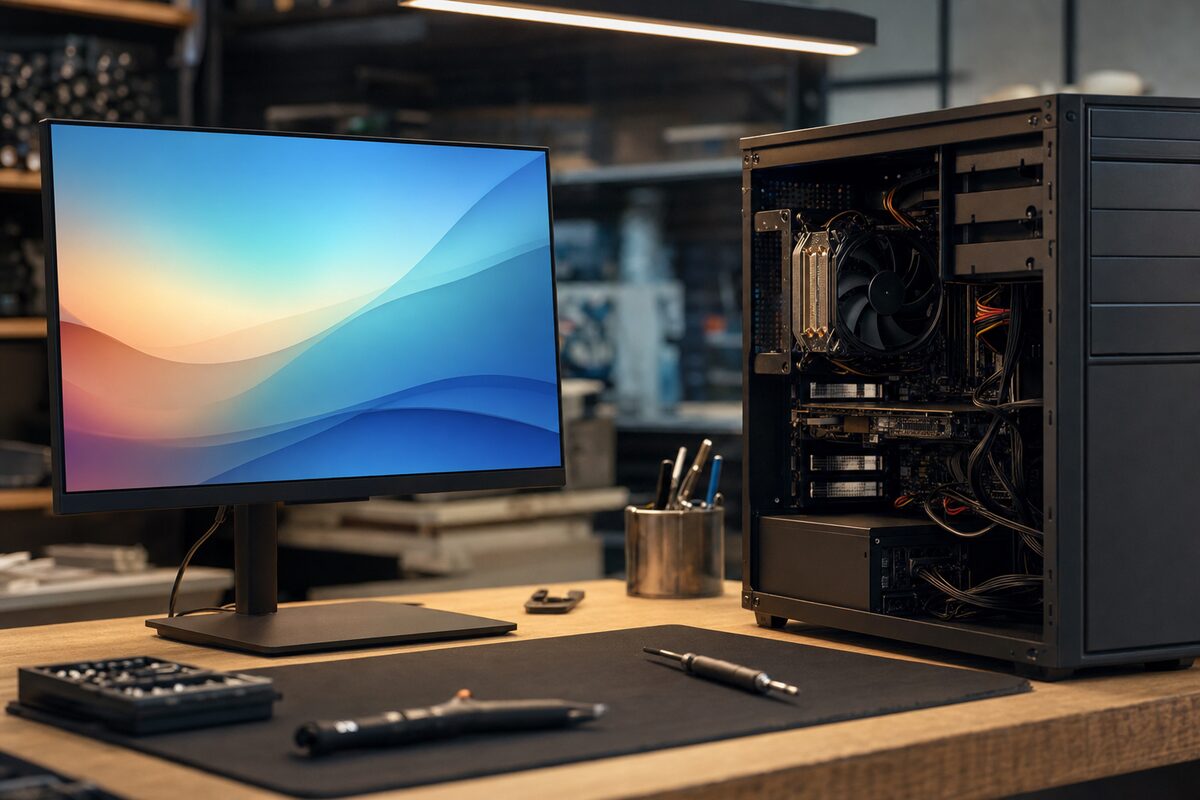
It's one of those diagnoses that's quietly satisfying — not because it's complicated, but because it nearly wasn't a repair at all. The customer had already decided the answer. She just needed someone to confirm it.
She came in carrying a 27-inch monitor under one arm and a look of resigned defeat. "It's dead," she said. "Just goes black. I've had it five years, so I suppose it's had a good run." She'd already been browsing replacements online and had a shortlist ready on her phone.
Five minutes later, we knew the monitor was absolutely fine.
What She Described
The symptom was this: she'd turn everything on in the morning, the monitor would show the desktop for a few seconds — sometimes up to a minute — and then go completely black. The power light stayed on. The PC sounded like it was running. But the screen was dead.
She'd tried unplugging and replugging the monitor. She'd tried a different plug socket. She'd even borrowed her neighbour's monitor, which "did the same thing" — at which point she concluded it must be something catastrophic and came to us before spending money on a new one. (Credit to her for that last bit.)
What We Actually Found
When we plugged her monitor into a known-good test machine here, it worked perfectly. Straight away, confidently, no hesitation. That told us the monitor itself was innocent.
We then turned our attention to the PC she'd brought in alongside it. The machine powered on, fans spun up, and just as she'd described, the display appeared briefly — Windows desktop, wallpaper, the lot — and then went black.
The culprit? A failing graphics card. Not a dead one — a dying one, which is actually more confusing to live with. The card was getting warm within the first minute of use, and as soon as it did, it was cutting out. The display signal simply vanished. The PC carried on running perfectly well; it just stopped sending anything to the screen.
We confirmed this by removing the dedicated graphics card and plugging the monitor into the motherboard's built-in video output instead. The PC ran for over an hour without a single dropout.
Why the Neighbour's Monitor "Did the Same Thing"
This is the part that had led her down the wrong path. When she borrowed her neighbour's monitor and it also went black, she assumed the problem had to be with something other than her monitor — something "bigger." That logic is understandable, but it pointed her at the wrong culprit.
Both monitors went black because both were receiving no signal from the same broken graphics card. A different monitor can't fix a broken signal source — it can only display what it's given. If the card isn't sending anything, no monitor on earth will show anything.
It's a very easy mistake to make, and it's exactly the kind of thing that sends people to the wrong section of the electronics store.
The Fix
In this case, the dedicated graphics card was a mid-range model from around 2018 — not worth repairing, and not worth replacing like-for-like at current second-hand prices for what she actually used the PC for. She used it for emails, video calls, a bit of online shopping, and occasionally editing family photos in a consumer app.
For those tasks, the integrated graphics built into her processor was more than adequate. We cleaned out a remarkable quantity of dust from the case while we were in there (always worth doing — dust is a silent overheater), ran the machine through its paces on the motherboard output, and sent her home with a fully functioning computer and her original monitor, which never had anything wrong with it.
The saving compared to buying a new monitor? Around £180. The saving compared to buying a new monitor and then discovering the PC still had problems? Considerably more, in both money and frustration.
If you'd like to know more about what's involved in a PC repair or diagnostic check, we're always happy to take a look before you commit to buying anything new.
The Practical Lesson
The moral here isn't "always trust the professionals" — it's something more useful than that. Before you conclude that a component is dead, try to isolate it properly. A few simple checks can tell you a great deal:
- Test the monitor on a different machine entirely — not just with a different cable or socket, but a genuinely separate computer you know works.
- Test the PC with a different monitor — ideally one you've verified is working before you start.
- Note exactly when the fault happens — immediately, after a minute, after ten minutes? Timing often points directly at heat-related failures.
- Listen to the machine — a PC that sounds like it's running normally but showing nothing is telling you the problem is almost certainly in the display chain, not the machine itself.
- Don't assume the most expensive-looking component is the broken one. Cables, ports, settings and graphics cards all fail before monitors do, most of the time.
A black screen is alarming, but it's one of the most fixable symptoms a PC can throw at you — if you diagnose it in the right order. The key is resisting the urge to replace the most obvious-looking suspect before you've ruled everything else out.
And if you're not sure where to start, bring it in. Sometimes the best money you spend on a computer is the money you don't spend replacing something that was never broken.