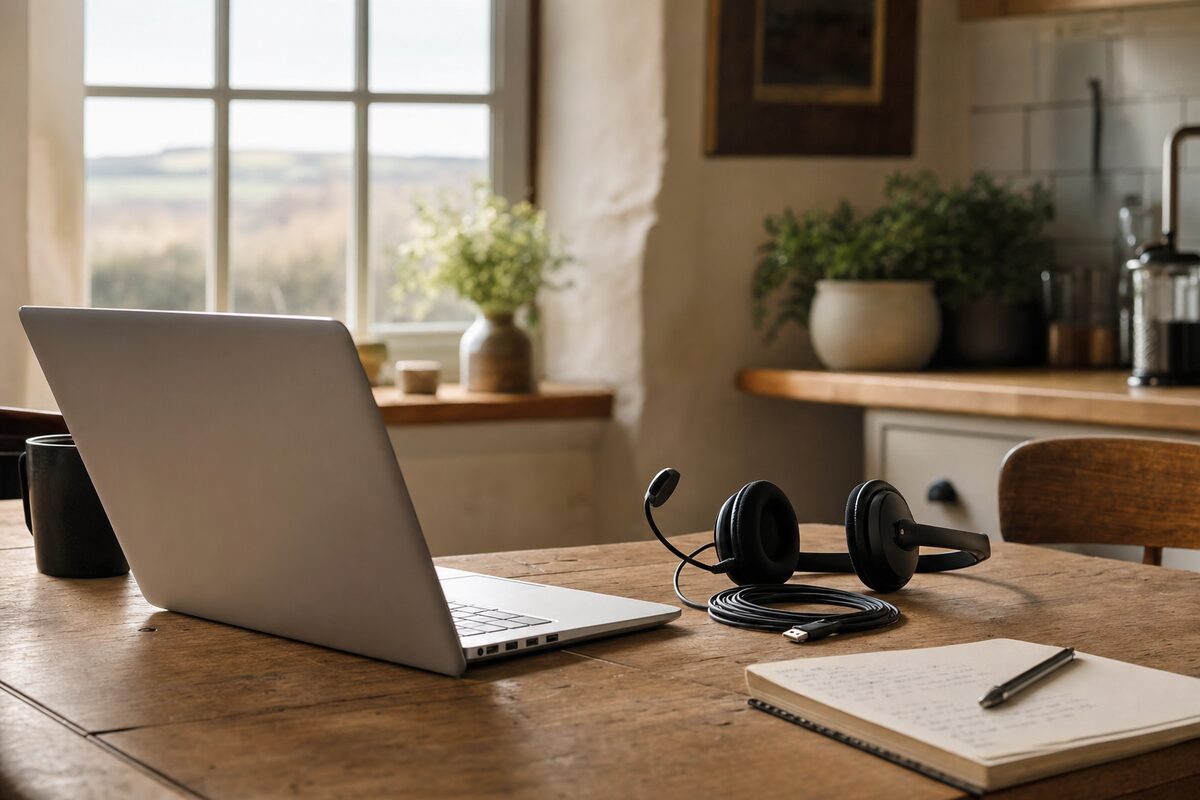
Margaret — not her real name, but a very real customer — ran a small bookkeeping business from her kitchen table in a village outside Tenterden. She was methodical, careful, and not at all the sort of person who ignores problems and hopes they go away. So when her laptop started misbehaving, she paid close attention and brought in detailed notes.
Her description was specific, and frankly baffling: the laptop would freeze solid — completely unresponsive — about thirty seconds after she finished a video call. Every single time. She'd close Teams or Zoom, the screen would go dark, and then nothing. Hard power-off, wait, restart. Every day, sometimes three or four times.
"I know it sounds mad," she said, sliding a handwritten list across the counter. "But it genuinely only happens after a call."
What She — and We — Assumed at First
When a problem sounds software-shaped, you start with software. Her symptoms pointed, on the surface, toward a driver conflict — possibly the audio or camera driver misbehaving when Teams released control of the hardware. That's a genuinely common issue on Windows laptops, particularly if drivers haven't been updated in a while or Windows has pushed an update that clashes with an older driver.
So we started there: updated the audio drivers, updated the camera driver, checked for any pending Windows updates, cleared out the Teams cache. Handed it back after a day of testing in the workshop where — naturally — it performed perfectly.
She called two days later. Still happening.
The Detail That Changed Everything
Back in it came. This time we asked her to walk us through her exact setup, step by step, as she'd have it at home. And that's when she mentioned, almost as an aside: "I use a USB headset for calls. A proper one — I got it because the laptop speakers echo."
We asked her to bring the headset in.
It was a perfectly decent wired USB headset, a few years old. She plugged it in, we opened Teams, ran a test call, ended it — and thirty seconds later the laptop locked up dead, just as she'd described. With the headset unplugged and the built-in mic in use: not a flicker of trouble.
We had our culprit. Now we needed to understand why.
What Was Actually Happening Inside
When you end a call on Teams or Zoom, Windows briefly hands audio device control back to the system. In that handover moment, the operating system essentially "checks in" with every connected audio device. The headset — specifically its USB controller chip — was responding to that check-in with what's known as a power state error: a garbled signal that told Windows the device had gone into an unexpected low-power mode.
On a healthy system, Windows would log the error, shrug, and move on. On this laptop, the USB controller on that particular port had a firmware bug — a known issue with that chipset generation — which caused the system to stall catastrophically trying to resolve the conflict. Within about thirty seconds, the whole machine locked up.
The fix involved three things:
- Updating the USB host controller firmware (a separate process from Windows Update, and one most people never know exists)
- Adjusting the USB selective suspend setting in Windows power options to stop the port aggressively cutting power to devices
- Testing the headset on a different port, which had a slightly different controller chip and had no issue at all
We went with all three. The port firmware update resolved the underlying bug; the power setting change gave it extra breathing room; and we marked the working port with a small strip of coloured tape so she'd always know which one to use.
Total cost: a bench hour and a strip of yellow tape.
Why This Took Two Visits to Diagnose
This is the honest part of the story, and it's worth saying plainly: we got it wrong on the first visit because we didn't have the full picture. When a problem only appears in a very specific set of circumstances, reproducing it exactly — same headset, same software, same workflow — is the only reliable way to find it. A laptop that "crashes after calls" is almost impossible to diagnose without the thing that's present during every call.
If you're describing a problem to a repair shop and you use any peripherals — headsets, dongles, USB hubs, external monitors, docking stations — always bring them along. The fault is often not in the laptop itself, but in the conversation between the laptop and something plugged into it. Our laptop repair work regularly turns up faults that only show themselves once the full setup is on the bench.
The Practical Lesson Worth Taking Away
Margaret's situation is a good reminder that computers don't exist in isolation. The thing on your desk is actually a system — laptop, charger, peripherals, software, network — and faults can live at any junction in that system, not just inside the machine itself.
If you've got a strange, repeatable fault that only happens in one specific scenario, that pattern is actually useful information. Write it down. Notice what's plugged in. Notice what software is running. Notice whether it happens on battery or on mains. The more specific the description, the faster a good technician can narrow it down.
And if your first repair visit doesn't solve it — bring it back. Intermittent and scenario-specific faults are genuinely tricky, and any honest shop will tell you that sometimes the problem only reveals itself the second time around, once you know exactly what to look for.
Margaret's laptop has been fine ever since. She still uses the yellow-tape port.