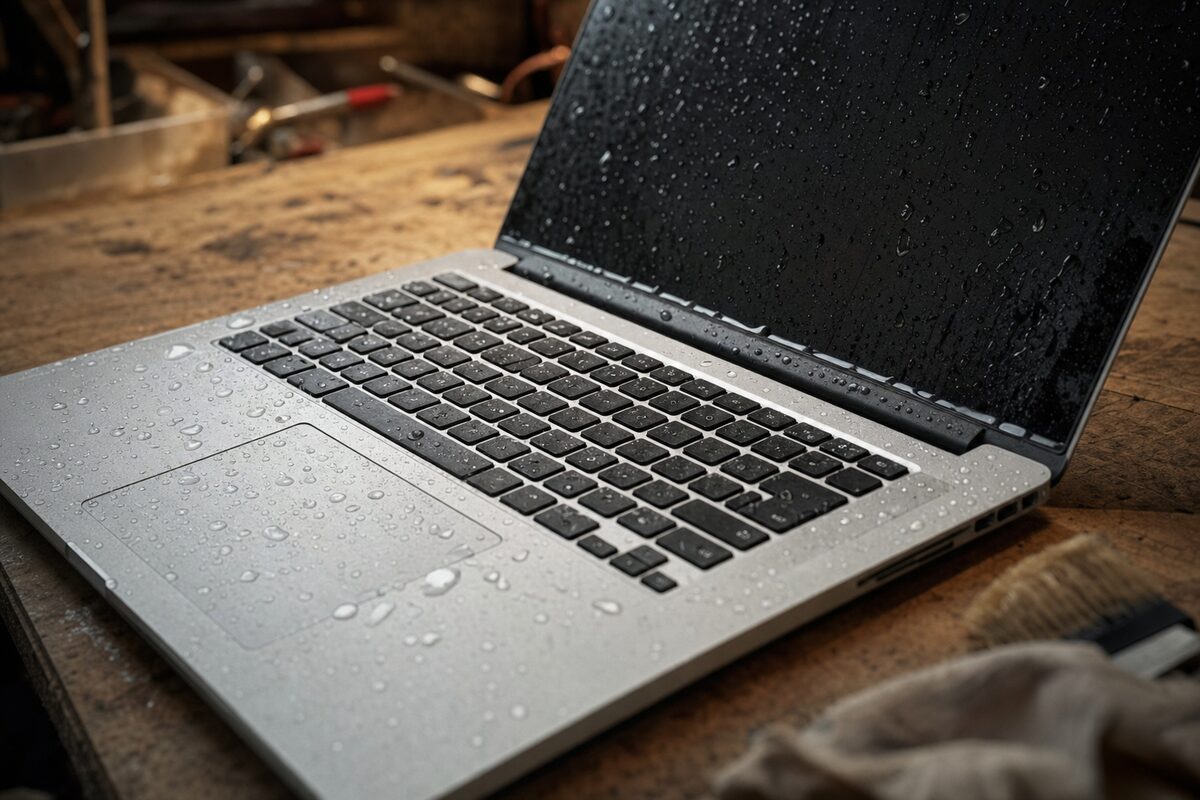
A laptop came in recently that looked, on the outside, absolutely fine. No cracked screen, no missing keys, no obvious trauma of any kind. The owner — let's call him Martin — explained that he'd knocked a large glass of water across his desk about a week earlier, and the laptop had been sitting in a bag ever since, because he'd been too nervous to turn it on.
That, as it turned out, was both the smartest and the most unlucky thing about the whole story.
What Martin Thought Had Happened
Martin was convinced the laptop was dead. In his words: "Water and electronics — that's it, isn't it? Game over." He'd come in mainly hoping to rescue his files — three years of self-employed bookkeeping records — rather than expecting the machine itself to survive. He'd already started pricing up replacements.
He'd done one thing before bringing it in, though, which he mentioned almost as an aside: right after the spill, he'd immediately plugged it into the mains and tried to turn it on, to see if it still worked.
It hadn't switched on. So he'd unplugged it, tipped it upside down, shaken it a bit, and left it in the bag.
That attempted power-on is where the real damage was done — and it's one of the most common mistakes people make with liquid-damaged laptops.
What Was Actually Wrong
When we opened the machine up, the picture was mixed — and, frankly, more hopeful than expected. The water had entered through the keyboard and tracked down onto the motherboard. There was visible mineral residue in two areas (tap water leaves a white chalky deposit as it dries), and one section of the board near the charging circuitry showed clear signs of a short — a small scorched patch where current had briefly flowed through water that hadn't yet dried.
That burn mark was the legacy of Martin's power-on attempt. The laptop itself hadn't caused it; he had, in completely understandable panic.
The good news: the SSD — which holds all the actual files — was mounted away from the wet zone and showed no damage whatsoever. The RAM was fine. The screen, the keyboard, the trackpad — all unaffected. The damage was localised to one section of the motherboard's power delivery circuitry.
How We Diagnosed and Fixed It
The first job was a thorough clean. We used isopropyl alcohol (the proper high-concentration stuff, not a general-purpose spray) and soft brushes to remove every trace of the mineral deposits from the board. This takes patience — you're not just wiping it down, you're working carefully around components to make sure residue isn't hiding under chip edges or between contacts.
Once clean and fully dry, we examined the scorched area under magnification. The damage had taken out a small charging controller component on the board — a chip responsible for managing power input from the charger. Without it, the laptop wouldn't charge and wouldn't run from mains power, but — crucially — it could still run from a battery if the battery had charge in it.
We sourced a replacement component and reflowed it onto the board. This is the kind of delicate soldering work that laptop repair at component level requires — it's fiddly, but it's far cheaper than a whole new motherboard or a new machine. With the component replaced, the laptop powered up, charged normally, and ran without any issues. Martin's files were exactly where he'd left them.
The Lesson: Turn It Off, Leave It Off
The single most important thing you can do if liquid hits a laptop is this: do not try to turn it on. If it's already on, shut it down immediately — hold the power button down until it cuts off, don't wait for a proper shutdown. Then unplug the charger.
After that:
- Tip it upside down gently to let liquid drain away from the internals
- Remove the battery if it's easily accessible (most modern laptops don't allow this, so don't force it)
- Do not use a hairdryer — heat pushes moisture further in and can warp components
- Do not put it in rice — this is a myth; rice doesn't meaningfully absorb moisture from inside electronics, and the dust can cause its own problems
- Leave it open, in a warm dry room, for at least 48 hours before even thinking about turning it on
- Better still, bring it to a repair shop before attempting anything
Water alone doesn't usually destroy a laptop instantly. What destroys it is electricity flowing through water — which is exactly what happens when you panic and hit the power button.
How Did This One End?
Martin collected his laptop about four days after dropping it off. It was running perfectly — same machine, all his files intact, charging normally. Total repair cost was a fraction of what a replacement would have been.
He did admit, with some relief, that the week of leaving it in the bag was "accidentally the right call." And he was right — that enforced waiting period meant the board was completely dry by the time we worked on it, which made the clean-up considerably easier.
Liquid damage at laptop repair level genuinely isn't always fatal. The outcome depends heavily on where the water went, how much of it there was, and — more than anything else — what you did in the first thirty seconds after the spill. Getting that bit right can be the difference between a straightforward fix and writing the whole thing off.
If you've had a spill and you're not sure what to do next, the safest move is always to leave the machine off and get it looked at sooner rather than later. Mineral deposits from tap water become harder to clean the longer they're left, and corrosion sets in over days and weeks. The laptop that seems fine sitting in a bag might quietly be getting worse.