Sandra brought in her laptop on a Tuesday morning with a look of quiet embarrassment. "I know what you're going to say," she told us, before we'd even said anything. "You're going to say I spilled coffee on it."
She hadn't. She was absolutely certain of it. The laptop lived on her desk at home, she didn't eat or drink near it, and the only liquid it had ever seen was the damp cloth she wiped the lid with occasionally. But something was clearly wrong — it had started shutting down without warning two weeks earlier, and there was a faint, acrid smell coming from it when it ran. Faintly burnt. Faintly electrical. Faintly, well, coffeesh.
The laptop itself was a mid-range Windows machine, about four years old. Perfectly respectable. Sandra used it daily for emails, a bit of online banking, and an Open University course she'd just started. Losing it, even for a week, was a genuine inconvenience.
What We Expected to Find
A burning smell plus random shutdowns is one of those combinations that makes experienced repair technicians think in a fairly predictable order. The mental checklist usually goes something like this:
- Overheating CPU or GPU due to a blocked or failing fan
- A failing or swollen battery
- A damaged or overloaded charging circuit
- Something actually burnt on the motherboard — a capacitor, a voltage regulator
- And yes, liquid damage, even if the customer doesn't remember a spill
We started at the top of that list. When we opened the machine up, the fan spun freely, the heatsink wasn't clogged, and the thermal paste — while not exactly fresh — wasn't in a terrible state. Temperature logs from the last few days of use, which Windows quietly keeps, showed the CPU hitting 94°C before each shutdown. That's well into dangerous territory. But the fan and heatsink weren't obviously the culprits.
The Thing Nobody Had Noticed
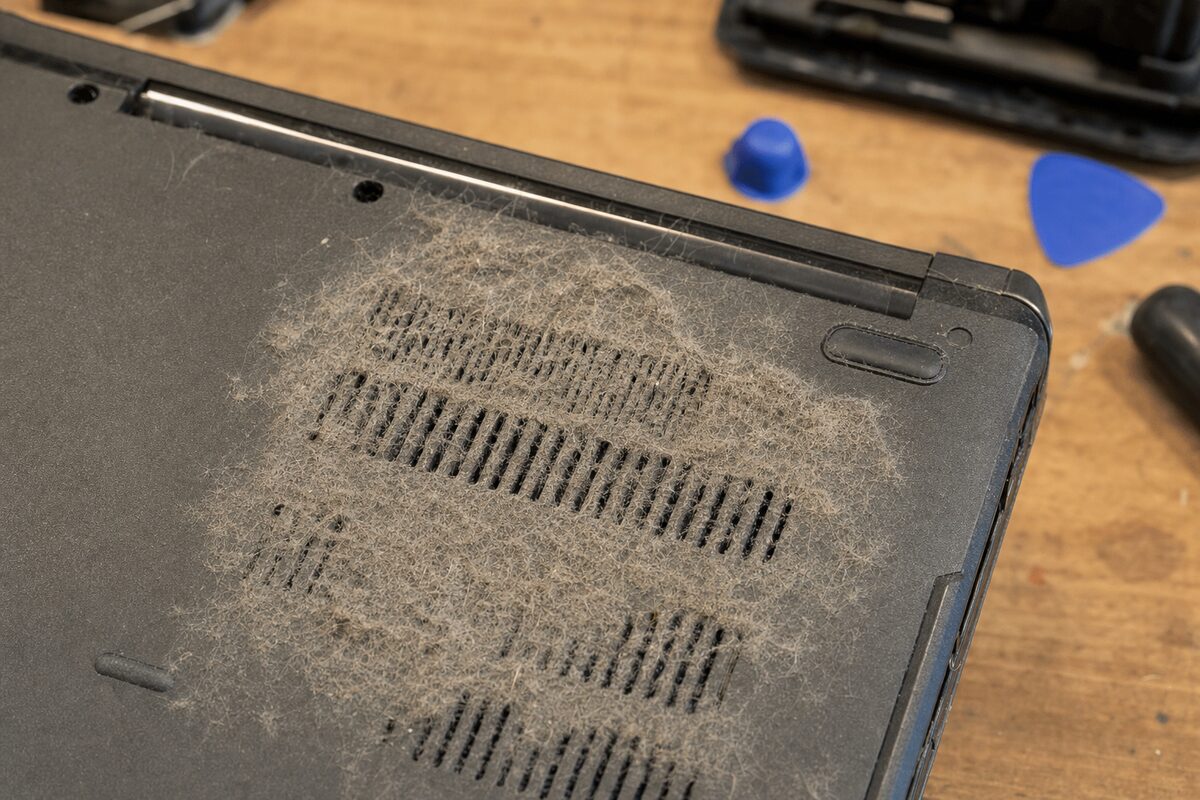
The bottom panel of the laptop has a series of ventilation slots — a row of narrow gaps that allow cool air to be drawn in by the fan. On Sandra's machine, those slots were completely sealed.
Not by dust, exactly. By a thin, dense mat of compacted grey fluff — pet hair, mostly, mixed with general household dust — that had built up so gradually and so evenly that it was essentially invisible from the outside. The slots looked open. Hold the laptop up to the light, though, and barely a glimmer came through.
The fan was doing its job perfectly. It just had almost no air to work with. Every time Sandra put the laptop on her lap — or, as we found out, on the sofa cushion next to her while she watched lectures — the remaining trickle of airflow was cut off entirely. The laptop was essentially suffocating. That burning smell wasn't a component failing. It was dust that had been slowly scorching against the heatsink fins during the worst of the thermal spikes.
The battery, to Sandra's relief, was completely fine. The motherboard showed no signs of real damage. This had been caught just in time.
What the Fix Actually Involved
In terms of labour, this was a relatively straightforward job — but it's one that really does need to be done properly rather than just blasted with a can of compressed air from the outside.
We disassembled the base panel, carefully removed the fan assembly, and cleaned both the fan blades and the heatsink fins thoroughly. The dust mat came out in one satisfying piece. We then replaced the thermal paste on the CPU — the old stuff had dried and cracked, which was reducing heat transfer to the heatsink even further. Everything was reassembled, and the machine was run under load for an hour while we monitored temperatures.
Peak CPU temperature under heavy load: 61°C. A completely different machine. The burning smell was gone. The shutdowns didn't recur.
Sandra picked it up the same afternoon. "I still can't believe it was just fluff," she said.
Why This Happens More Than You'd Think
Laptops are designed to run warm — manufacturers keep the fans quiet and the chassis slim, which means airflow is always a compromise. That compromise only works if the ventilation slots stay clear.
In a home with a pet, or even just ordinary carpet and soft furnishings, fine fibres circulate in the air constantly. The fan actively draws them in. Over one to three years of daily use, this is entirely normal and entirely inevitable. It's not a sign the laptop was mistreated. It's just physics.
The problem is that it's invisible until something goes wrong — and by then, the heat stress has been building for months. In some cases, repeated thermal shutdowns will eventually cause solder joints on the motherboard to crack, or will accelerate the degradation of storage and memory. Sandra's machine had been lucky.
The practical lesson here is straightforward: a laptop that's used in a home with pets, carpet, or soft furnishings should be professionally cleaned internally every two to three years, regardless of whether it's showing any symptoms. It's genuinely preventative maintenance, not an unnecessary expense. For most machines, it's a quick, affordable job — far cheaper than the alternative.
The Practical Takeaway
If your laptop has started running noticeably hotter than it used to, or the fan seems to be working harder, or you've noticed any unusual smell when it's under load — don't wait for it to start shutting down. That's the machine telling you it's already been struggling for a while.
And if you tend to use your laptop on a sofa, bed or cushioned surface: even a cool, clean machine will overheat if its intake vents are pressed against soft material. A cheap, rigid laptop stand makes a real difference — but it won't substitute for clearing out the dust that's already in there.
Sandra's Open University course continued without further interruption. The laptop is now on a small wooden board on the sofa, the cat has been diplomatically informed, and everyone is getting on fine.