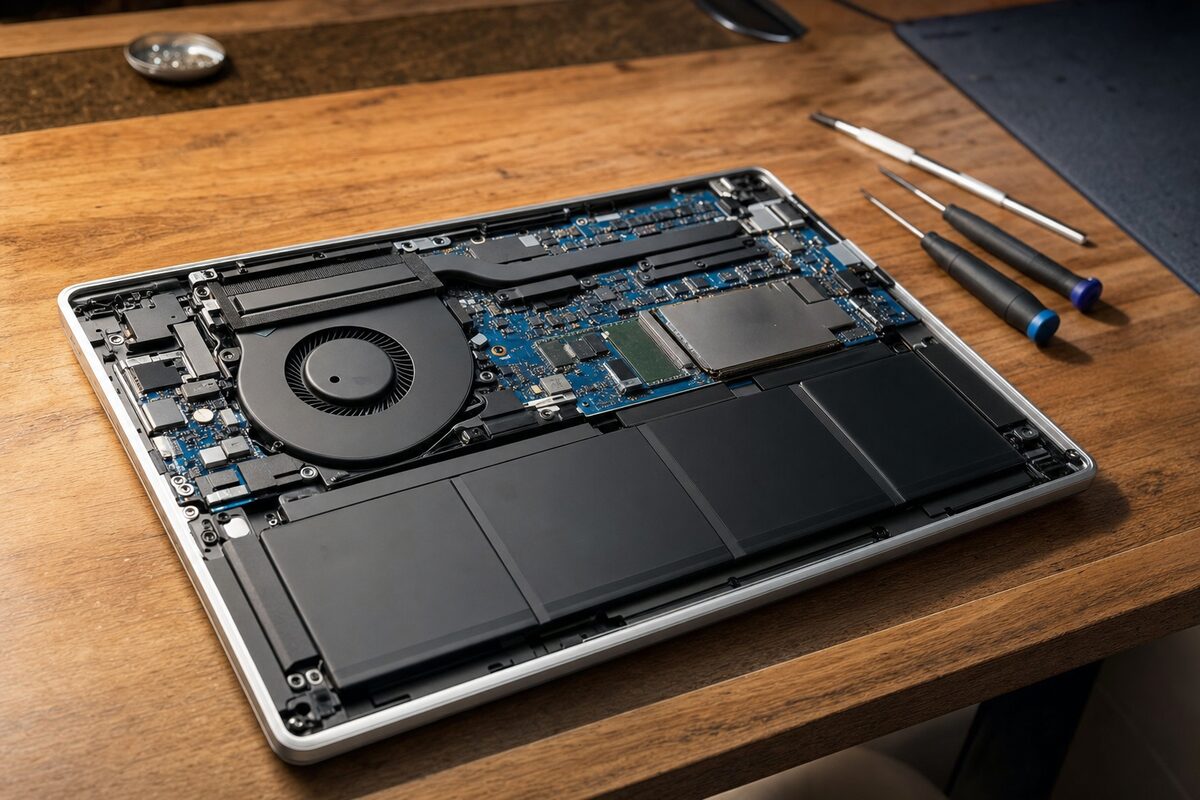
It's one of the most common conversations we have. Someone brings in a laptop, slightly apologetic, saying something like: "I know it probably seems fine to you, but it's just… not quite right." It runs. It charges. Windows loads. But it's slow, it gets warm, the fan screams whenever they open a spreadsheet, and occasionally it just freezes for no obvious reason.
They've been putting up with it for months — sometimes years — because nothing has dramatically broken. And when we open the back, it's almost never a mystery for long.
The Dust Problem Nobody Talks About
Laptop manufacturers design their machines to pull cool air in and push warm air out through tiny vents. After two or three years of daily use, those vents — and the fan and heatsink inside — become clogged with dust, fluff and pet hair. Not a little. Sometimes a solid grey mat of it, packed so tightly it barely lets any air through at all.
When that happens, the processor can't cool itself properly. So it does something clever but frustrating: it deliberately slows itself down to generate less heat. This is called thermal throttling, and it's why a four-year-old laptop that "should still be fast enough" suddenly feels like it's wading through treacle — especially when you're doing anything demanding like a video call or a large spreadsheet.
A proper clean-out — compressed air, fine brushes, thermal paste replaced on the processor — can make a laptop feel genuinely faster without touching a single piece of software. We see it regularly, and customers are usually astonished at the difference.
The Battery That's Quietly Swelling
Laptop batteries don't just go flat — they age. And as they age, they can swell. Sometimes only slightly, but enough to push the trackpad up from underneath, or cause the base of the laptop to bow so it no longer sits flat on a desk. Many people notice the wonky trackpad or the slight rocking and assume something got knocked. It's usually the battery.
A swollen lithium battery isn't just an inconvenience — it's a genuine safety concern. It needs to come out, carefully, before it causes any further damage to the chassis or, in rare but serious cases, becomes a fire risk. If your trackpad has suddenly started clicking unevenly, or your laptop rocks on a flat surface when it didn't used to, it's worth having someone take a look.
The Hard Drive That's on Its Last Legs — But Hasn't Told You Yet
Older laptops — anything bought before around 2018 or so — are quite likely to still have a traditional spinning hard drive rather than a solid-state drive (SSD). These drives are mechanical: tiny read/write heads hover nanometres above spinning magnetic platters, thousands of times a minute. They are, by modern standards, fragile.
As they age, they develop what are called bad sectors — areas of the disk that have become unreliable. Windows quietly works around them for a while, but over time the drive gets slower, files take longer to open, and eventually the system starts struggling to boot at all. Sometimes you get a warning. Often you don't.
The signs to watch for:
- The laptop takes a very long time to start up — longer than it used to
- Files occasionally fail to open, or open corrupted
- You hear a faint clicking or grinding sound from inside the machine
- Windows seems to "think" for ages before doing simple tasks
- The drive activity light (if your laptop has one) is constantly lit
If any of those sound familiar, don't wait. A failing hard drive is the number-one cause of sudden, catastrophic data loss. If the drive is still healthy enough, replacing it with an SSD as part of a data recovery or SSD upgrade is one of the best-value things you can do for an older laptop — it's often faster than a brand-new budget machine.
The Charger Port That's Starting to Give Way
If you've ever found yourself jiggling the charger cable to get it to charge, or propping it at a specific angle with a rubber band and a prayer, the charging port is on its way out. On many laptops this is a soldered connector on the motherboard, and repeated stress from cables being pushed in and pulled out at odd angles gradually loosens it.
Left long enough, the connection becomes intermittent — the laptop charges sometimes, not others. Left longer still, it can arc, overheat the board around the port, and cause damage that's far more expensive to put right. Catching it early, when it's just starting to feel loose, is almost always a straightforward fix. Catching it late, when the board is scorched, is a different matter entirely.
So How Do You Know If Your "Fine" Laptop Actually Is?
Here's a quick self-check that takes about two minutes:
- Feel the underside after 20 minutes of use. Warm is normal. Hot enough to be uncomfortable is not.
- Listen for the fan. It should come on occasionally and then quieten. If it runs constantly at high speed, something is working too hard.
- Check how long it takes to boot. A healthy modern laptop should be at the desktop in under 30 seconds. Much longer than that and something is struggling.
- Rock the laptop gently on a flat desk. It should sit completely still. Any wobble from the base warrants a look inside.
- Notice whether charging is consistent. If you have to fiddle with the cable at all, get it checked before it gets worse.
None of these tests require any technical knowledge, and any one of them flagging a problem is a good reason to have someone pop the back off and take a proper look. A laptop repair at this stage — before anything has actually failed — is almost always quicker, cheaper and far less stressful than the alternative.
The laptops we worry about most aren't the ones that arrive with a cracked screen or a dead battery. It's the ones that are running, technically, but quietly building towards something worse. If yours fits that description, it probably deserves a look inside.