A few weeks ago a woman — let's call her Margaret — walked in carrying a laptop she'd clearly already made peace with losing. "I'm assuming it's just old and needs replacing," she said, setting it on the counter. "But my son said bring it in first."
The laptop was a perfectly respectable mid-range Dell, about four years old. Not ancient. Not a powerhouse either, but the kind of machine that ought to browse the web, open emails and run Word without breaking a sweat. Instead it was taking three minutes to fully start up, stuttering when she switched between browser tabs, and occasionally just sitting there for thirty seconds doing nothing visible at all.
She'd already tried everything she'd found online: restarting it, running Windows Update, deleting old files, even a factory reset six months earlier. Nothing had stuck.
What we expected to find
Honestly? The first guess — before even switching it on — was the hard drive. A spinning hard drive (as opposed to a solid-state drive, or SSD) that's on its way out will produce exactly this kind of sluggish, intermittent behaviour. It doesn't always fail dramatically. Often it just slows down, stalls, and generally makes life miserable while technically still "working."
So we ran a full S.M.A.R.T. diagnostic on the drive — that's a built-in health-reporting system that logs things like read errors, bad sectors, and how many hours the drive has been running. The result came back clean. No errors. No warnings. Drive health: good.
Fine. On to the next suspect.
Running through the list
When a slow laptop passes its drive test, there's a checklist of other things worth checking before you start guessing:
- RAM: We ran a memory test overnight. No faults found — the 8 GB of RAM was fine.
- Temperatures: Overheating causes throttling, where the processor deliberately slows itself down to avoid damage. We monitored CPU and GPU temperatures under load. Both were within normal range — the fan was doing its job.
- Startup programs: There were a few, but nothing outrageous. Disabling them made a small difference on boot, but not enough to explain the overall sluggishness.
- Malware: A thorough scan came back clean. No infections.
- Windows itself: The installation looked healthy. No corrupt system files flagged.
Everything was fine, officially. And yet sitting there using the thing was genuinely painful.
The thing the tests don't measure
Here's where it got interesting. S.M.A.R.T. diagnostics are good at spotting a drive that's failing. What they're less good at spotting is a drive that's simply slow — not broken, not dying, just fundamentally inadequate for what's being asked of it.
We ran a separate benchmark tool that measures actual read and write speeds on the drive rather than just its health. And there it was. The drive was a traditional spinning hard disk — a 5,400 RPM model, which is the slower variety — and it was delivering read speeds of around 90 MB/s. That sounds like a number, but to put it in context: a modern SSD typically delivers anywhere from 500 MB/s to well over 3,000 MB/s. This drive was running at roughly one-thirtieth of what a decent SSD can do.
It wasn't broken. It was just a bottleneck. Every time Windows needed to load something — a file, a browser tab, a background update — it was queuing up requests to a drive that physically couldn't keep pace. The processor was sitting there waiting. The RAM was sitting there waiting. Everything was waiting on this one slow spinning disk.
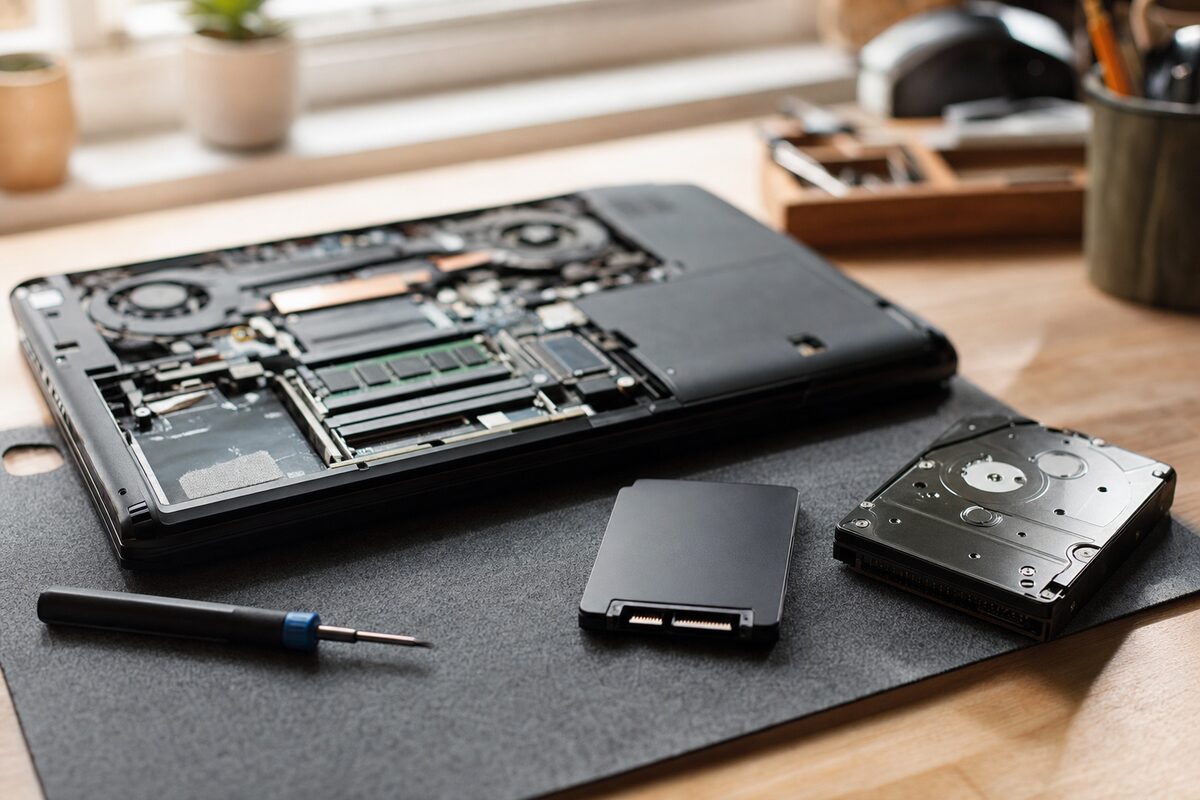
The fix was straightforward: we cloned the entire drive — Windows, all her files, all her settings — onto a new SSD, swapped the drives over, and handed it back. Boot time dropped from three minutes to under fifteen seconds. Apps opened immediately. The stuttering was gone.
Margaret's response, when she picked it up: "That's not the same laptop."
Why this matters for you
This is one of the most common repair scenarios we see, and it's almost always a surprise to the customer — because the machine passed its tests and nothing seemed obviously wrong. A few things worth knowing:
- Most laptops sold before 2020 still have spinning hard drives. It was standard. It's not a flaw, it's just older technology — and it shows its age long before it fails completely.
- An SSD upgrade is one of the best-value improvements you can make to an older machine. In most cases the hardware is perfectly capable — it's just being starved of data by a slow drive. An SSD upgrade can genuinely feel like a new computer.
- Slow isn't the same as broken. If your laptop passes every test but still feels awful to use, the tests might simply not be measuring the right thing.
- A factory reset won't fix a hardware bottleneck. It clears out software clutter, which helps a little, but it can't make the drive physically spin faster. The problem persists.
The practical takeaway
If your laptop is a few years old and has always felt a bit slow — never snappy, always a bit behind itself — it's worth finding out whether it has an SSD or a spinning hard drive. On Windows, you can check in Task Manager under the "Performance" tab; it will label the drive as either "Disk" (spinning) or "SSD." If it says Disk, that's almost certainly the main reason life feels sluggish.
Replacing a hard drive with an SSD, including cloning all your existing data across so you lose nothing, is a routine job — usually done same-day or next-day. It's considerably cheaper than a new laptop, and in most cases gives you a machine that feels just as quick as one costing three times more.
Margaret's son was right to say bring it in first. It was a good laptop having a thoroughly bad time with a slow drive. Now it's just a good laptop.