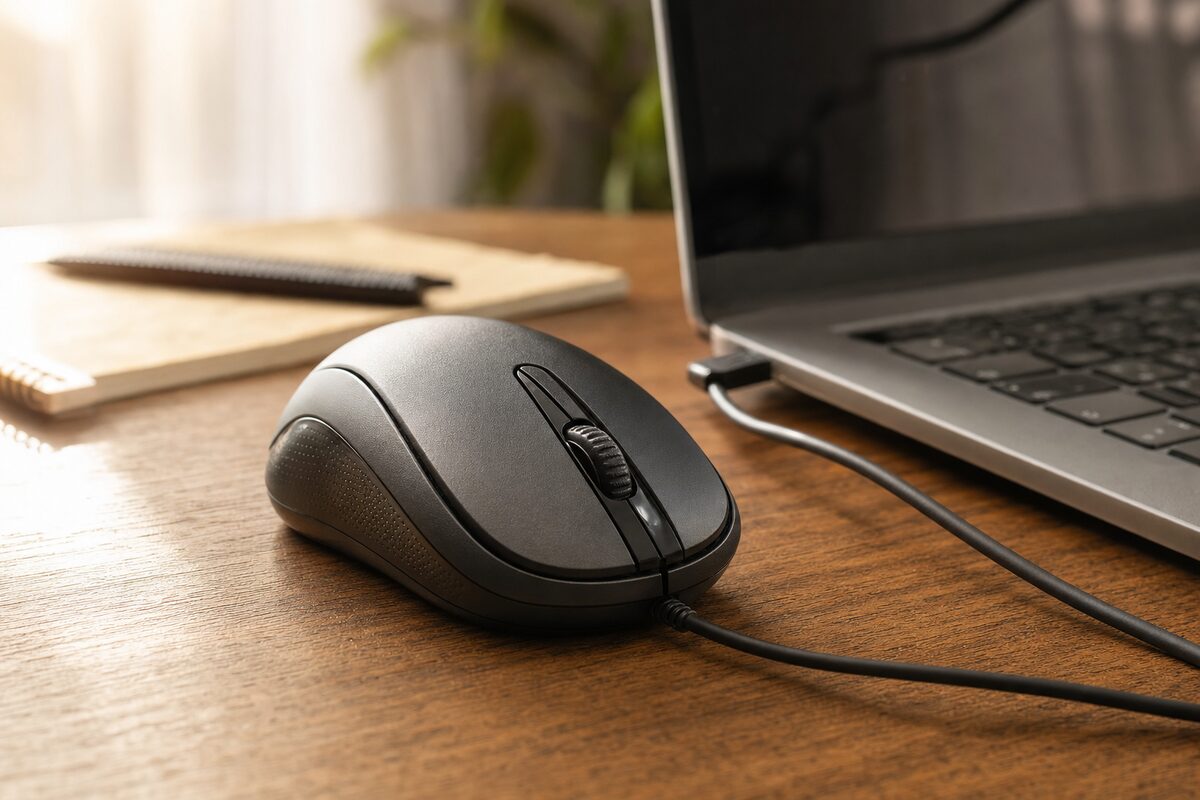
Margaret — not her real name, but she'll know who she is — arrived at the counter carrying a laptop bag in one hand and a look of exhausted resignation in the other. "I think there's something wrong with the USB ports," she said. "I've been through three mice in six months."
She'd bought the first mouse, a perfectly decent wireless one, and it had worked fine for a fortnight. Then it started cutting out — freezing mid-scroll, then dropping the connection entirely. She assumed the mouse was faulty. Bought a different brand. Same thing happened. Tried a third, wired this time, from a different manufacturer. Still freezing, still dropping out. The logical conclusion, she'd decided, was that the laptop itself was broken.
She was wrong. But not in a way that was obvious, and not in a way she could reasonably have been expected to know.
What We Actually Did First
The first thing we do with any USB complaint is resist the urge to assume. A USB port problem can be hardware — a damaged socket, a failed controller chip — but it can just as easily be software, drivers, or a Windows setting quietly doing exactly what it was designed to do, at exactly the wrong moment.
We plugged in a known-good USB mouse and watched it for a few minutes while running the laptop on battery. It worked perfectly. We moved a window around, opened a browser, scrolled a webpage. All fine. We left it idle for about ninety seconds.
The mouse froze.
We moved it again. It came back after a two-second pause, as if waking up. We'd seen this before. We knew exactly where to look.
The Culprit: Windows Power Management Doing Its Job Too Well
Windows has a feature — enabled by default on most laptops — that allows it to cut power to individual USB ports when it decides those devices are "idle." The idea is sensible enough: save battery life by switching off things that aren't being actively used. In practice, when this applies to a mouse, it means Windows literally turns the port off every time you stop moving for a minute or two, then takes a moment to wake it back up when you do.
For a mouse, those two seconds feel like the device has died. If you're not expecting it, you'll tap the mouse, nothing happens, so you tap again, and by the time it wakes up you've already concluded that the mouse is broken. If this is a wireless mouse with its own sleep mode, the two devices arguing over who should be asleep makes things even more unreliable.
The setting responsible lives in Device Manager, buried three levels deep under the properties of the USB Root Hub. There's not one of them — there are usually several, one for each controller on the board, each with its own tick-box labelled "Allow the computer to turn off this device to save power." Every single one was ticked on Margaret's laptop.
The Fix, and Why It Only Took Four Minutes
We went into Device Manager, expanded the Universal Serial Bus controllers section, and worked through each USB Root Hub one by one. For each one: right-click, Properties, Power Management tab, untick the box. It takes thirty seconds per hub once you know where you're going.
Total time: four minutes, including the time spent explaining it to Margaret.
We tested again — left the mouse idle for three minutes while we made a cup of tea. Came back, moved the mouse: instant response. No pause, no freeze, no drama.
Three mice hadn't been faulty. The laptop hadn't had broken USB ports. A default Windows setting had been quietly doing this to her for six months.
Why This Doesn't Show Up When You Google It
If you search "USB mouse keeps freezing," you'll find a lot of advice. Update the drivers. Try a different port. Replace the mouse. Reinstall Windows. Buy a new laptop. Almost none of the top results point you straight to USB Root Hub power management — partly because it's not a dramatic problem, partly because it looks for all the world like a hardware fault, and partly because by the time most people are searching, they've already bought a replacement mouse and assumed the old one was to blame.
The misdiagnosis is completely understandable. If three different mice from three different manufacturers all behave the same way on the same laptop, the laptop really does seem like the common factor. It is the common factor — just not in the way you'd expect.
The Practical Takeaway
If you're having any of the following problems, this setting is worth checking before you spend money on anything:
- A USB mouse that freezes, lags or drops out — especially after a short idle period
- A USB keyboard that occasionally misses keystrokes when you haven't typed for a moment
- A USB hub where devices seem to disconnect and reconnect on their own
- A wireless dongle (for a mouse or keyboard) that loses its connection unpredictably
To check it yourself: right-click the Start button, choose Device Manager, scroll down to Universal Serial Bus controllers and expand it. You'll see several entries called USB Root Hub or USB Root Hub (USB 3.0). Right-click each one, choose Properties, click the Power Management tab, and untick "Allow the computer to turn off this device to save power." Do this for every USB Root Hub in the list, then restart.
It won't harm your laptop. It may cost you a small amount of battery life in theory, though in practice the difference is negligible. What it will do is stop Windows quietly pulling the rug out from under your peripherals every time you pause to think.
Margaret went home with her original mouse — the first one she'd bought, which had been sitting in a drawer for months after she'd written it off. She plugged it in. It worked perfectly. It still does.
Sometimes the repair isn't a repair at all. It's just knowing where Windows hides its decisions.