A retired teacher — we'll call her Margaret — came in a few weeks ago with a laptop she'd had for about four years. A perfectly decent mid-range Windows machine, well looked after, not a scratch on it. Her complaint was simple: the laptop worked absolutely fine on the charger, but the moment she unplugged it, it would shut down within a minute. Sometimes less. Sometimes instantly.
She'd already looked it up online. Every forum, every YouTube comment, every well-meaning nephew had told her the same thing: the battery's dead, love, you'll need a new one. She'd resigned herself to paying for a replacement and just wanted it done.
Except — and here's where it got interesting — Windows was reporting the battery at 80% charge. Not flat. Not critically low. Eighty percent.
What Windows Was Saying vs What Was Actually Happening
This is the thing about laptop batteries that most people don't know: the percentage Windows shows you isn't always the truth. It's an estimate, calculated from what the battery tells Windows about itself. And batteries, especially ageing lithium-ion ones, can lie quite convincingly.
A battery has two key numbers that matter: its design capacity (what it held when new) and its full charge capacity (what it can actually hold now). A four-year-old battery that's been charged daily might report a design capacity of, say, 45,000 mWh — but only actually hold 12,000 mWh. Windows dutifully reports "80% of whatever the battery currently thinks it holds." It has no idea the battery is quietly fibbing about its own capacity.
We ran a battery report — a built-in Windows tool most people have never heard of — and the picture became very clear, very fast.
How We Diagnosed It (And the Tool You Can Run Yourself)
If you open a Command Prompt and type powercfg /batteryreport, Windows generates a detailed HTML report that tells you exactly how your battery is performing over time. It shows design capacity, full charge capacity, cycle count, and recent drain history.
Margaret's battery had a design capacity of 41,440 mWh. Its current full charge capacity? 9,204 mWh. That's about 22% of what it was built to hold. The 80% Windows was showing her was 80% of almost nothing. The moment any real load hit the processor — opening a browser tab, scrolling a webpage — the battery voltage dropped sharply, the laptop panicked, and it cut out to protect itself.
There was nothing wrong with the laptop itself. No viruses, no failing hardware, no corrupted Windows installation. It was a perfectly healthy machine running on a completely exhausted battery that had got very good at pretending otherwise.
The Fix — and Why It Took Less Than an Hour
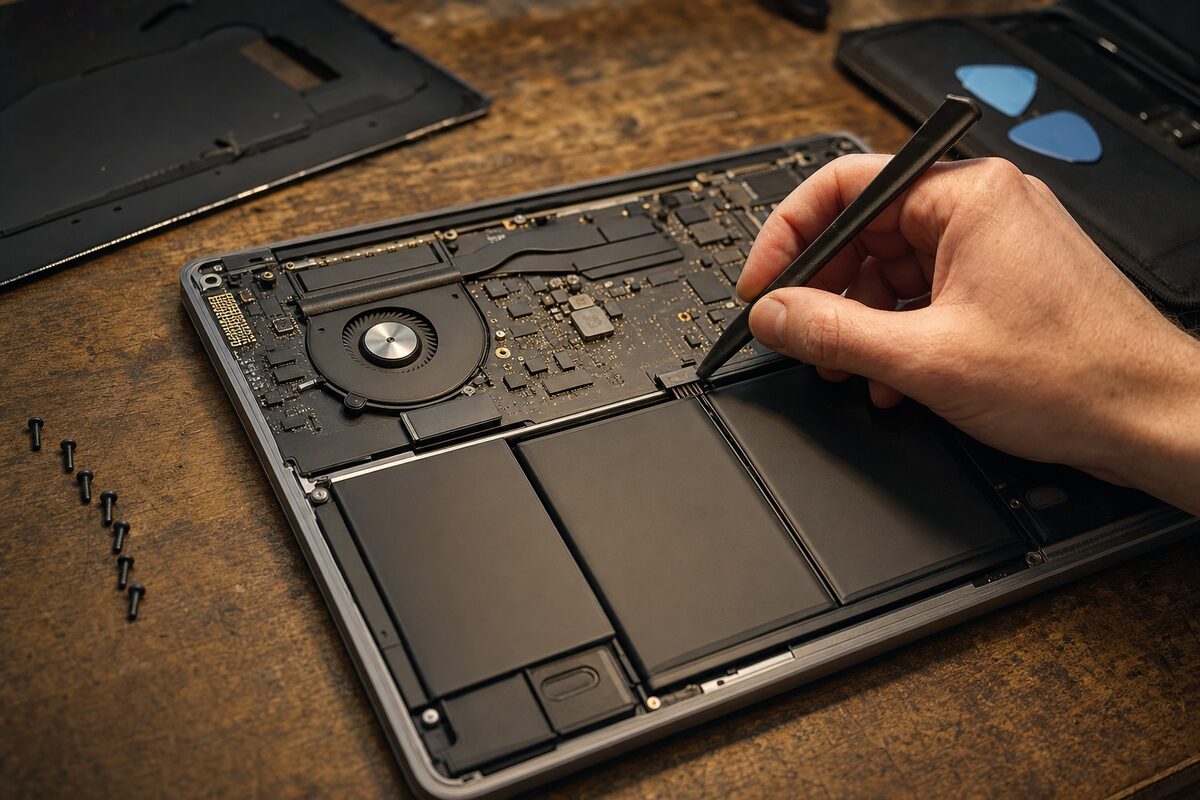
A replacement battery for her model was straightforward to source — a quality compatible cell, not a cheap no-brand unit. Fitting it on this particular laptop meant removing the back panel (about a dozen screws, a ribbon cable to be careful around, nothing dramatic) and swapping the battery out. The whole job took around 45 minutes on the bench.
After fitting, we let it charge fully, ran the battery report again, and the new full charge capacity matched the design capacity almost exactly. We unplugged it, ran it through its paces — browser, video, spreadsheet, the lot — and it ran for well over four hours without complaint.
Margaret collected it the same day. Total cost: considerably less than a new laptop.
The Broader Lesson: Don't Trust the Percentage
This is probably the most useful thing you can take from this story. The battery percentage your laptop shows you is a calculated guess, not a measurement. As batteries age, they lose the ability to hold charge — but they don't always lose the ability to report charge. The result is a number that looks reassuring right up until the moment the laptop dies on you in a meeting, on a train, or halfway through something important.
Here are a few signs your battery might be in worse shape than Windows is letting on:
- The laptop shuts down suddenly at 20–40% rather than warning you and running down gradually
- It charges from near-empty to "100%" suspiciously quickly — in under an hour
- It runs much shorter on battery than it used to, even after a full charge
- It runs warm even on light tasks when unplugged
- The battery percentage jumps around rather than declining steadily
If any of those sound familiar, run the powercfg battery report. It takes about ten seconds and the results are usually quite revealing. If your full charge capacity has dropped below around 40% of the design capacity, a replacement battery will make the machine feel almost new again — and it's almost always worth doing before you start thinking about replacing the whole laptop.
Is It Always the Battery? Not Quite
Worth saying: a sudden shutdown when unplugged can occasionally be caused by other things — a failing power management driver, a corrupted Windows power plan, or in rarer cases a fault with the charging circuit on the motherboard itself. But the battery is by far the most common culprit, and the battery report will usually make it obvious one way or the other.
If you bring a laptop in for something like this and the report shows a healthy battery, we'll dig further. But in our experience, nine times out of ten, the battery is exactly what it looks like: worn out and ready for retirement.
The practical takeaway? A laptop that won't run without a wire isn't a laptop anymore — it's a very expensive desktop. If yours has started behaving that way, don't assume the whole machine is finished. More often than not, it just needs a relatively minor repair to get it working properly again.