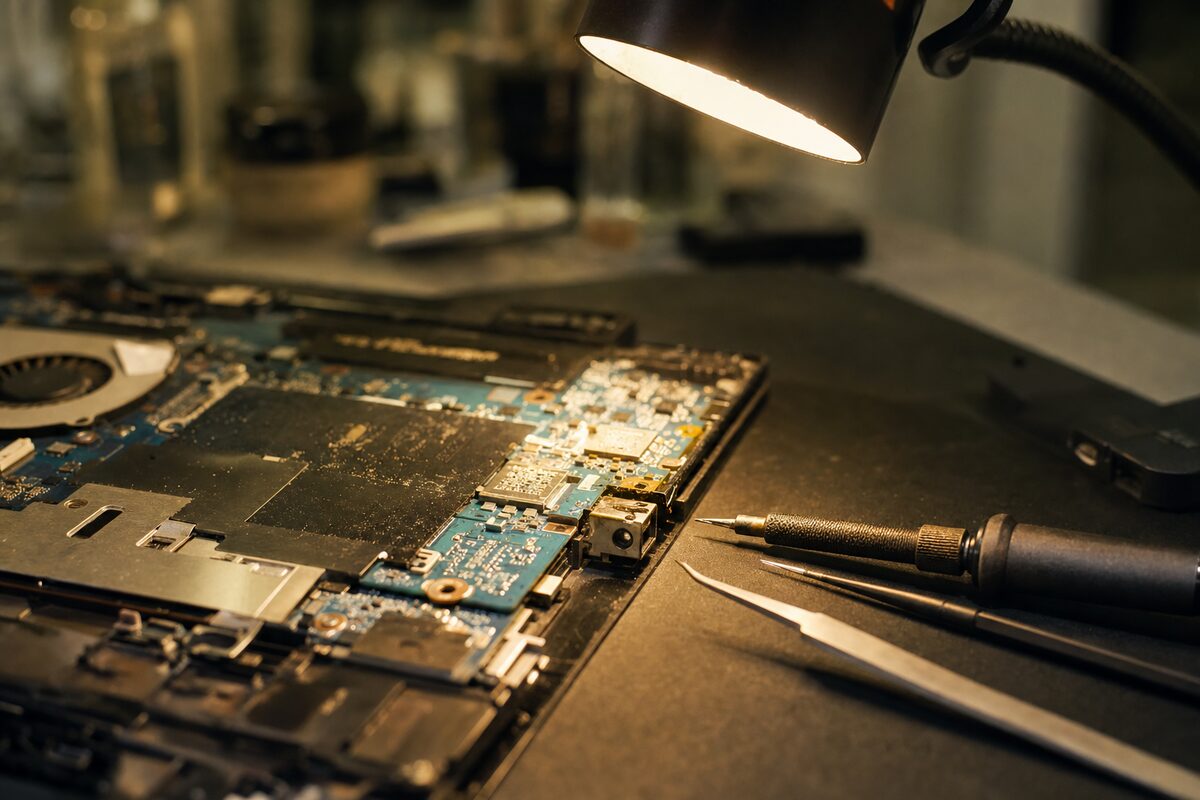
Every so often a job comes in that looks completely ordinary on the outside — and then quietly teaches everyone in the workshop something new. This was one of those jobs.
What Came Through the Door
A woman — let's call her Margaret — brought in a two-year-old mid-range Windows laptop. She'd bought it to work from home and used it every single day. The problem, she explained, was simple: it had stopped charging. The little battery icon just sat there with a plug symbol and the words "plugged in, not charging."
She'd already tried two different chargers. Same result. She'd looked it up online and found a forum post suggesting it might be a Windows power driver issue, so she'd updated her drivers too. Still nothing. Her conclusion — a reasonable one — was that the charging port was broken and probably needed soldering. She was braced for bad news.
There was one detail she mentioned almost as an afterthought: "It does actually charge if I plug in through that little USB-C port on the side. But that's not what it's supposed to use, is it?"
That single throwaway sentence changed everything.
What the Bench Found
The laptop had two ways to receive power: a traditional barrel-style DC jack on the left side (the "proper" charger port), and a USB-C port on the right that supported Power Delivery — meaning it could charge the laptop, but only if you had the right USB-C charger and only at a slower rate.
Margaret had been using the USB-C port with a phone charger cable and a spare 65W USB-C brick she'd found in a drawer. It worked, but it was running the battery down faster than it was topping it up under load. She hadn't realised what she was doing — she'd just found something that kept the laptop alive and carried on working.
So the question became: why had the DC jack stopped working?
Physically, the port looked fine. No bent pin, no scorch marks, no wobble. The charger clicked in and seated properly. A quick check with a multimeter confirmed the charger itself was putting out the correct voltage at the plug. Power was arriving at the port — but it wasn't getting any further.
The Actual Culprit
After stripping the bottom panel and tracing the DC jack's solder points on the motherboard, the fault revealed itself: one of the four solder joints connecting the jack to the board had cracked clean through. Not visibly, not dramatically — just a hairline fracture in the joint, invisible until you put it under a loupe.
This is called a dry joint or a cold solder joint. It's one of the most common — and most misdiagnosed — faults in laptop repair. The jack looks and feels perfectly attached. The laptop might even charge intermittently for a while before the joint fails completely. From the outside, there is genuinely nothing to see.
What causes it? Usually a combination of things:
- Repeatedly plugging and unplugging the charger over hundreds of cycles, putting tiny amounts of sideways stress on the joint each time
- The slight flex in a laptop chassis when it's picked up or moved while plugged in
- Normal thermal expansion and contraction as the laptop heats up and cools down
- Occasionally, a minor manufacturing imperfection in the original joint that was always going to fail eventually
It's not user error. It's not a fault with the charger. It's just wear — the kind that accumulates invisibly over two years of daily use.
The Fix — and What Wasn't Needed
The repair itself was straightforward for anyone comfortable with fine soldering: reflow the existing joints, add a small amount of fresh solder, clean the area, reassemble. Total hands-on time, about forty minutes. The laptop powered up on the barrel jack immediately and has been charging normally ever since.
What wasn't needed:
- A new motherboard (quoted elsewhere at over £200)
- A new laptop
- Any software changes or driver reinstalls
- A new DC jack (the existing one was perfectly intact)
Margaret had very nearly ordered a replacement machine. She'd been one browser tab away from clicking "buy." The USB-C workaround had masked the fault just well enough to keep her going — which, in a roundabout way, was lucky, because it meant she hadn't lost any work and the laptop arrived with no data risk at all.
The Practical Lesson for Everyone Else
If your laptop shows "plugged in, not charging" — or charges only intermittently, or only charges when the cable sits at a certain angle — don't assume the port is physically broken or that it's a Windows software problem. Both of those things do happen, but a failed solder joint is at least as common, often cheaper to fix, and easy to mistake for something more serious.
A few things worth knowing:
- Test with a known-good charger first — but if that doesn't fix it, the charger probably isn't the issue
- Driver updates almost never fix a charging fault — that advice is everywhere online and it's almost always wrong
- If it charges on USB-C but not the main port, that's a strong clue the fault is physical and specific to the DC jack circuit
- Intermittent charging that gets worse over time is a classic sign of a cracked solder joint — don't wait until it fails completely, because continued use can enlarge the crack and complicate the repair
The broader point is that modern laptops have two or three potential charging routes on the same machine, and that complexity can genuinely disguise what's wrong. A laptop that sort of charges is still a laptop with a fault — and the sooner someone looks at it properly, the simpler the fix tends to be.
Margaret's laptop is back on her desk. The only thing she bought was the repair. Sometimes that's all it takes.