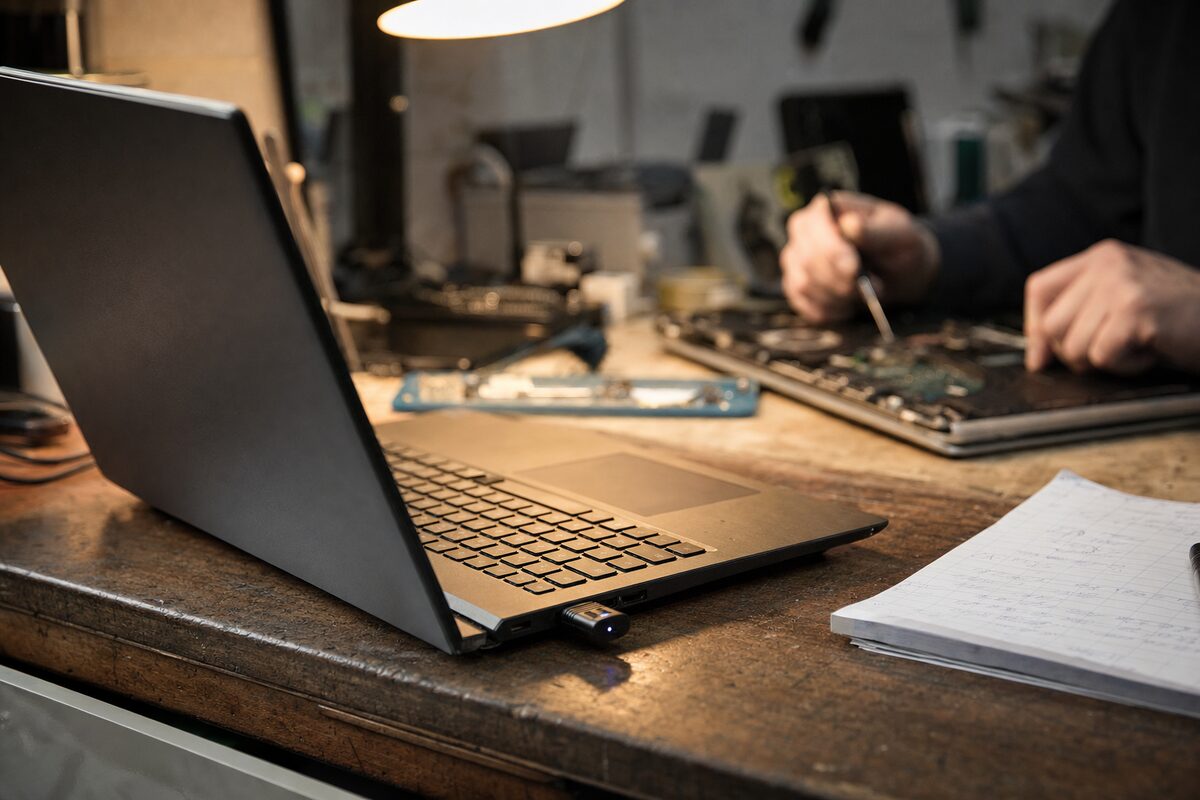
Margaret came in on a Wednesday morning carrying a perfectly ordinary-looking HP laptop and a slightly weary expression. She'd just replaced the battery — the third one in four years — and it was already draining faster than it should. She'd been told by a well-meaning relative that she "must be charging it wrong," but she wasn't. She was doing everything right. The real problem was something that had been silently running in the background since the day she bought the machine.
What She Thought Was Wrong
Margaret's working theory, nudged along by that same relative, was that she was leaving the laptop plugged in too long and "overcharging" it. She'd started unplugging it obsessively once the indicator hit 100%, then plugging it back in when it dipped below 20%. She'd read something online about lithium batteries not liking to sit at full charge for extended periods — which, to be fair, is broadly true.
But she'd been doing this for months already, and the battery was still dying. New one in, same pattern. Surely, she thought, there must be something wrong with the laptop itself — maybe a fault on the motherboard, or a compatibility issue with the replacement battery. She was quietly bracing herself for an expensive conversation.
What We Found Instead
After a quick check to confirm the battery was genuine and seated properly, we plugged the laptop into our monitor and had a look at what was actually happening under the bonnet.
The culprit turned out to be two things working together, neither of which Margaret had any reason to know about:
- A "Maximum Performance" power plan that had been set — probably during a Windows update reset — and never changed back. This was keeping the CPU running at 100% of its capacity even when the laptop was just sitting on the desktop doing nothing.
- A background process from an old piece of software she'd uninstalled months ago. The software was gone, but its startup service was still running, polling the system constantly and generating unnecessary heat.
The combination meant the laptop was essentially working flat-out, all the time, whether Margaret was using it or not. A battery in that environment doesn't fail because it's been charged wrong — it fails because it's being used wrong, relentlessly, without ever getting a rest.
How We Diagnosed It
The first clue was temperature. Within about ninety seconds of booting up with nothing open, the fan was already spinning at moderate speed and the underside of the chassis was noticeably warm. That's not normal for an idle machine.
We opened Task Manager and sorted by CPU usage. One process — a leftover service from an old cloud storage app she no longer used — was sitting at a consistent 12–18% CPU, never dropping. On a quad-core laptop, that's not catastrophic on its own, but it's a constant, unnecessary drain.
We then checked the active power plan via the control panel. Sure enough: Maximum Performance. This setting tells Windows to keep the processor running at its highest possible speed at all times, regardless of what's actually needed. For a video editor rendering footage, it makes sense. For someone writing emails and browsing the web, it's like leaving your car engine at high revs while parked.
A proper laptop diagnostic also showed the battery's charge cycle count — the number of times it had gone from full to empty — was about 40% higher than it should have been for a machine that age. The battery wasn't defective. It had just been worked to death.
The Fix — and Why It Was Simple
The repair itself took less than twenty minutes:
- Removed the orphaned startup service using a tool called Autoruns — a free Microsoft utility that shows everything that loads at startup, including things that aren't visible in Task Manager.
- Switched the power plan to Balanced — Windows' sensible default, which lets the CPU step down when it's not needed.
- Enabled a battery care feature in HP's own software (many laptops from major brands have this built in and disabled by default) that limits maximum charge to 80% when the machine is regularly used on mains power — the most battery-friendly way to work plugged in.
We tested it over about half an hour in the shop. Fan barely spun up. CPU sat at 1–3% at idle. The laptop ran cool and quiet in a way Margaret said she hadn't noticed in years.
The Lesson Worth Taking Away
Battery health isn't just about how you charge — it's about how hard the laptop is working between charges. A machine that runs hot and busy all the time will destroy a battery far faster than one that's kept cool and given a sensible workload.
If your laptop's battery seems to be getting worse faster than it should, it's worth checking a few things before you reach for a replacement:
- Check your power plan. In Windows, search for "Choose a power plan" in the Start menu. If it's set to High Performance or Maximum Performance, switch it to Balanced unless you have a specific reason not to.
- Look at what's running at startup. Task Manager's Startup tab (Ctrl + Shift + Esc, then click Startup) shows you what's loading when Windows boots. Anything you don't recognise is worth investigating.
- Check if your laptop has a battery care or charge limit setting. HP, Dell, Lenovo and Asus all have manufacturer software that can cap charging at 80%, which significantly extends long-term battery life if you mostly work plugged in.
- Notice the temperature. If the underside of your laptop is warm when you're doing nothing, something is running that shouldn't be.
Margaret left with the same battery, the same laptop, and a reasonable expectation that this one might actually last. Sometimes the fix isn't a new part — it's understanding what the old one has been quietly putting up with.