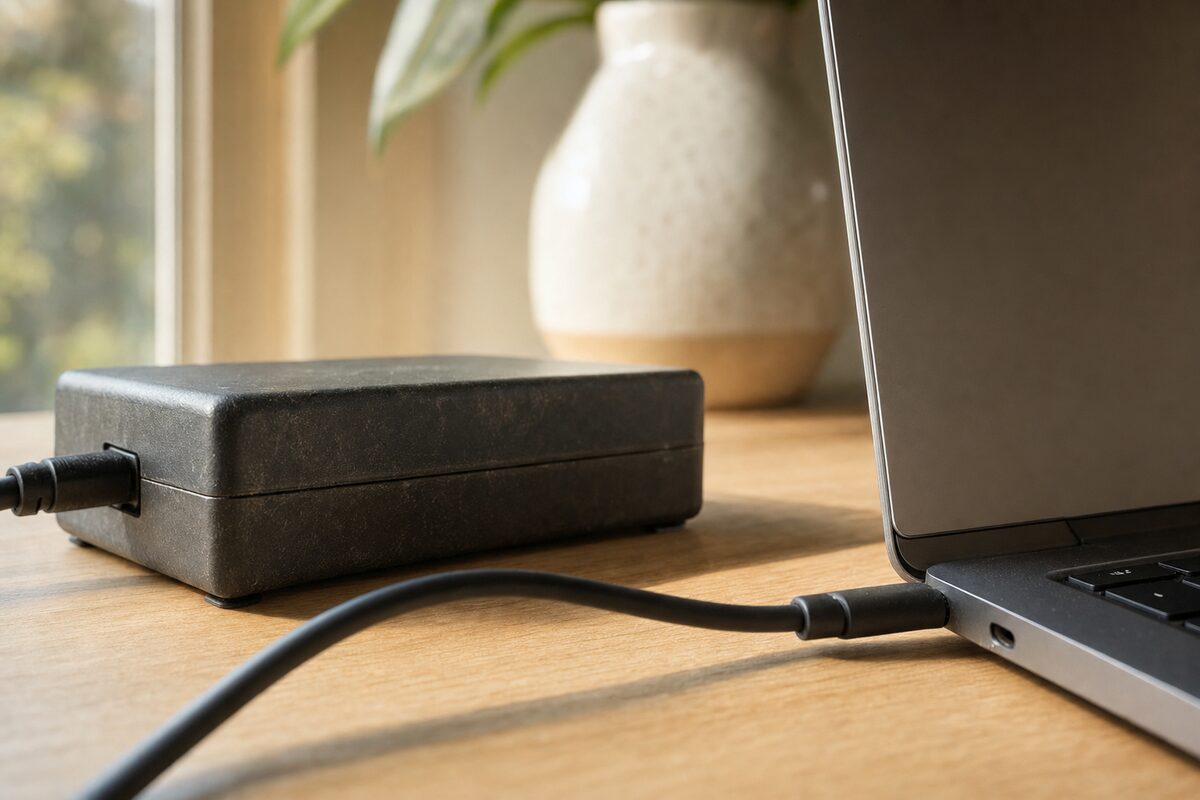
It happens to almost everyone. The original charger stops working — or goes missing — and rather than pay £50 or £60 for a genuine replacement, you pick up a cheap one online for £12. It fits. The laptop powers on. Job done.
Except it's not quite done. Weeks or months later, the battery that used to last five hours is barely making two. The laptop occasionally shuts down without warning. Sometimes it charges to 100% almost instantly — which sounds great, but definitely isn't. And nobody makes the connection back to that cheap charger, because after all, it works, doesn't it?
This is one of the most common patterns we see when laptops come in for battery problems. The culprit isn't always age or heavy use. Quite often, it's the charger.
Why the Wrong Charger Does Real Damage
Your laptop's battery is managed by a small circuit — usually called the battery management system, or BMS — that carefully controls how fast the battery charges, when it stops, and how much current flows at any given moment. It's a surprisingly clever bit of engineering, and it relies on the charger delivering a very specific, stable voltage.
Cheap third-party chargers often don't deliver that. Their output voltage can wander up and down rather than staying rock-steady. They may deliver the wrong wattage — either too little, which stresses the battery by making it work harder to compensate, or too much, which pushes more heat into cells that really don't like heat.
Lithium-ion batteries (the type in almost every modern laptop) are particularly sensitive to this. They degrade faster when charged too quickly, too hot, or with inconsistent current. A poor-quality charger can do in six months what would otherwise take three or four years.
The Signs Your Charger Might Be the Problem
You don't need a multimeter to spot the warning signs. Keep an eye out for:
- The battery percentage jumping around — going from 45% to 80% in minutes, or dropping suddenly when you unplug.
- The charger getting very hot — warm is normal, hot enough to be uncomfortable to touch is not.
- A burning or plastic smell — stop using it immediately if you notice this.
- The laptop running sluggishly while charging — some laptops throttle their performance when the charger can't supply enough power.
- Windows or macOS showing a "plugged in, not charging" message — this can be the battery management system refusing to accept charge from a supply it doesn't trust.
- Battery life that's declined noticeably since you switched chargers — trust your instincts on this one.
Genuine vs. Compatible — What's the Difference?
There are three broad types of replacement charger you'll come across:
Genuine OEM chargers are made by or for the laptop manufacturer — Dell, HP, Lenovo, Apple and so on. They're the safest choice and the most expensive, but you know exactly what you're getting.
Quality compatible chargers from reputable brands (Belkin, Targus, Anker and a handful of others) are generally fine. They're properly regulated, meet safety standards, and won't mistreat your battery. These are a perfectly reasonable middle ground.
No-name ultra-cheap chargers — the ones with no brand, no CE mark, and a listing that's somehow cheaper than the postage should be — are where the problems start. Many of these are not regulated properly, have poor or absent surge protection, and simply don't deliver what they claim on the label.
The price difference between a quality compatible charger and a dodgy one is usually £10 to £20. The price difference between a healthy battery and a replacement battery is often £60 to £120. The maths rather makes itself.
A Note on USB-C Charging
Newer laptops — and virtually all MacBooks made in the last several years — charge via USB-C. This has made things both better and worse. Better, because a good USB-C charger from a reputable brand will work reliably across many devices. Worse, because the market is absolutely flooded with cheap USB-C chargers that don't honour the USB Power Delivery standard properly.
If your laptop supports, say, 65W charging, and you're using a 20W phone charger because the plug fits, the laptop will charge — but slowly, and often with the battery doing extra work to keep up with demand while the charger struggles. Over time, this matters.
Always check the wattage your laptop actually needs — it's usually printed on the original charger or in the manual — and match it as closely as you can.
What To Do If You Think Your Battery Is Already Damaged
If your battery life has dropped significantly, or your laptop is showing any of the warning signs above, it's worth getting it checked sooner rather than later. In many cases a laptop battery replacement is straightforward and much cheaper than a new machine — but the longer a damaged battery is left, the more risk there is of it swelling, which can cause real damage to the chassis and other components.
A few practical things you can do right now:
- Check the charger you're currently using — is it genuine, or was it a quick cheap fix?
- Look up the wattage printed on your original charger and compare it to what you're using now.
- On Windows, run a battery report: open Command Prompt and type powercfg /batteryreport — it gives you a clear picture of how your battery's capacity has changed over time.
- On a Mac, hold Option and click the battery icon in the menu bar — it'll tell you the battery condition directly.
The right charger is one of the least glamorous things you can spend money on. But it's genuinely one of the best ways to protect a laptop you rely on every day. When the original one dies, it's worth taking ten minutes to buy a decent replacement rather than the cheapest thing that turns up in a search. Your battery will thank you — and so will your wallet, a year down the line.