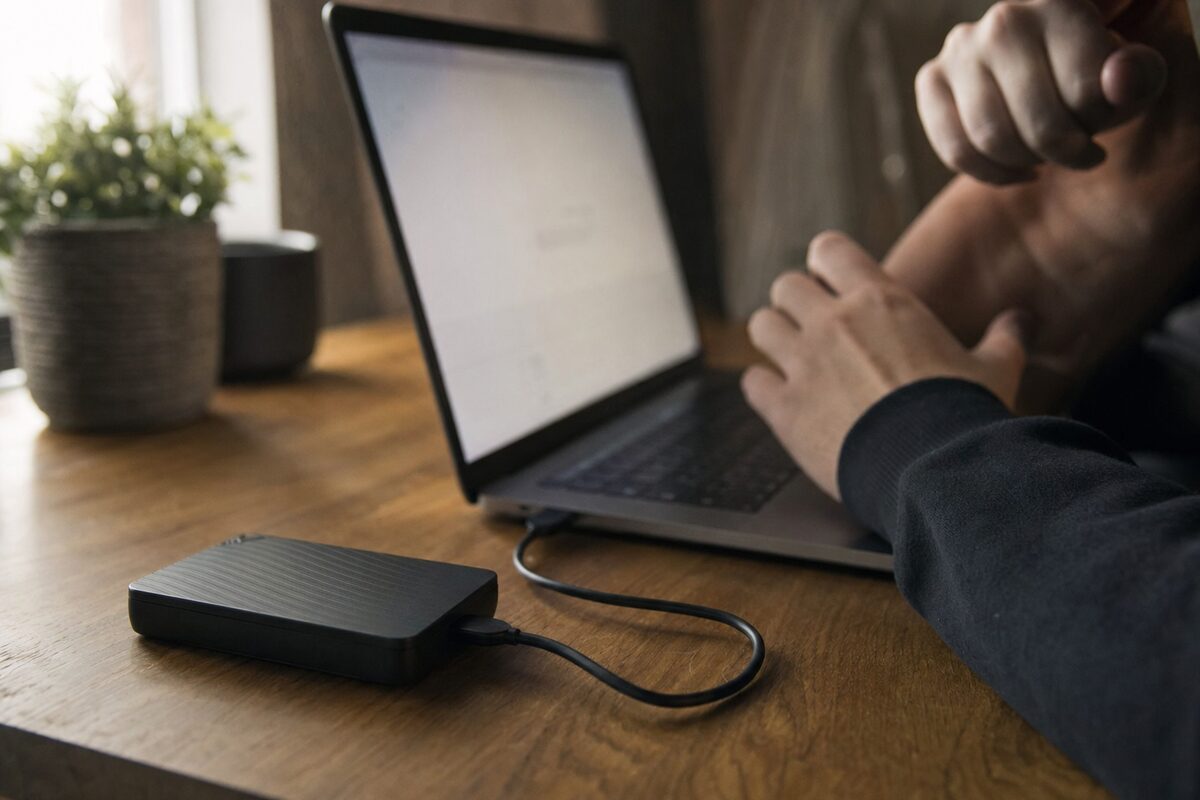
It's one of the saddest conversations we have. Someone comes in with a dead laptop, visibly relieved when they remember the backup drive sitting on their desk at home. "It's fine," they say. "I've got it all backed up." Then they go home, plug the drive in — and find it completely empty. Or worse: it contains one folder of photos from 2021 and nothing since.
This happens more often than you'd think. The backup felt like it was running. The drive was plugged in. Nobody had switched anything off. But somewhere along the way — a Windows update, a cable swap, a new user account — the backup quietly stopped, and nobody noticed.
So this article is a short, practical guide to checking that your backup is actually doing what you think it's doing. Five minutes now could save you everything later.
Why Backups Stop Without Telling You
The trouble with most backup software is that it fails silently. It doesn't pop up and say "Oi — I haven't backed anything up in six months." It just… stops. Common reasons include:
- The backup drive was unplugged and never reconnected properly
- A Windows update reset the backup settings or broke the schedule
- The backup drive filled up and the software gave up instead of overwriting old files
- You migrated to a new laptop and forgot to set the backup up again
- The drive developed a fault and the software is failing to write to it
- You're logged in as a different user account than the one the backup was configured under
Any one of these can leave you with months or years of unprotected files, with no warning whatsoever.
How to Check Your Windows Backup Is Actually Running
Windows has a built-in tool called File History, and it's worth checking right now if you use it.
- Click the Start button and type File History — open it from the results
- Look at the line that says "Files last copied" — this tells you the date of the most recent backup
- If it says "Never" or shows a date that's weeks or months ago, your backup is not running
- Check that your external drive is listed and connected — if it shows "Disconnected," Windows can't see it
If File History is switched off or broken, don't panic — just get it set up properly before you need it. Make sure your backup drive is plugged in, click "Turn on," and let it run its first full backup before you disconnect anything.
You can also use the older Backup and Restore (Windows 7) tool — confusingly still present in Windows 10 and 11 — by searching for it in the Start menu. It shows the date and time of the last successful backup, which is the key thing to check.
How to Check Your Mac Backup Is Working
If you use Time Machine on a Mac, here's the quick check:
- Click the Time Machine icon in the menu bar (the clock with the arrow) — if you don't see it, go to System Settings and search for Time Machine
- It will show you when the last backup completed — "Latest Backup: Today, 14:32" is what you want to see
- If it says "Backup Failed" or the last backup was a long time ago, something has gone wrong
- Check that the Time Machine drive is connected and that there's still space on it
Time Machine is generally more reliable than Windows File History, but it still falls over if the drive fills up or develops errors. A drive that's been running for three or four years may also be near the end of its useful life — which is a cruel irony when it's the thing you're counting on.
The "Restore Test" — The One Thing Most People Never Do
Here's the uncomfortable truth: even if your backup software says it's running and the dates look recent, you don't actually know it's working until you've tried to restore something from it. This is called a restore test, and almost nobody does one.
It doesn't have to be complicated. Just pick a random file from your backup — a photo, a document, anything — and try to restore it to your desktop. If it works, great. If the software errors out, or the file is corrupted, or nothing appears, you've just discovered a very important problem while you still have time to fix it.
Do this once every few months. It takes two minutes and it's the only real proof that your backup is healthy.
What About Cloud Backup — Isn't That Enough?
Services like OneDrive, iCloud and Google Drive are genuinely useful, but they're not the same as a proper backup. They sync your files — which means if you accidentally delete something, or ransomware encrypts your files, the damage can be synced to the cloud before you've even noticed. Most cloud services do keep version history, which helps, but it has limits and it's easy to miss the window.
The gold standard is still the 3-2-1 rule: three copies of your data, on two different types of storage, with one copy kept offsite (or in the cloud). For most home users, that means your main files, a local external drive, and a cloud backup running in the background. All three working. All three checked.
What to Do If Your Backup Really Has Failed
If you've just discovered your backup hasn't been working, the first thing to do is not panic, and the second thing is to not do anything rash. Don't start deleting files to free up space, and don't write lots of new data to a drive you're worried about.
If your computer is still working, plug in a backup drive and start a fresh backup today. If the machine has already failed and you have no backup, professional data recovery can often retrieve files even from drives that have stopped working — but the sooner you act, and the less you've used the drive since it failed, the better your chances.
The practical takeaway is simple: go and check your backup right now. Not tomorrow. Look at the date it last ran, find a file and try to restore it, and make sure the drive it's saving to has enough space. It takes five minutes, and it's the most useful five minutes you'll spend this week.