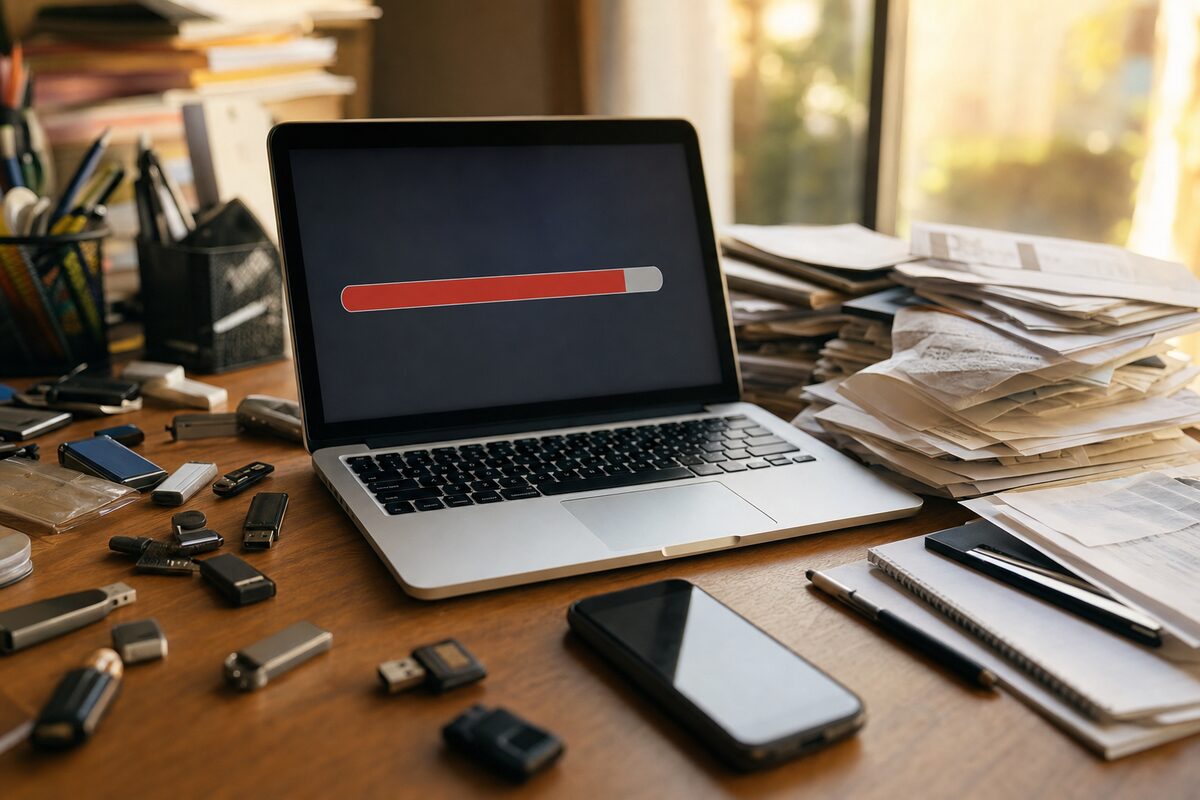
Most people have a rough system for keeping their PC tidy. Files they no longer need get dragged to the Recycle Bin, the Bin gets emptied now and again, and that — as far as most of us are concerned — is that. Job done. Space freed. On with the day.
The trouble is, it's only half the story. Windows is quietly holding on to far more storage than the Recycle Bin ever shows you, and a PC that "should" have plenty of room can end up sluggish, struggling, and throwing up low-disk-space warnings that seem to come from nowhere.
This is one of those things we see constantly. Someone brings in a laptop that's running slowly, and the first thing we notice is that the drive is 95% full — even though the owner swears they've been keeping on top of it.
What the Recycle Bin Actually Does (and Doesn't Do)
When you delete a file and it lands in the Recycle Bin, Windows hasn't removed it at all. It's simply moved it to a hidden holding area on your drive. The space it occupied is still occupied — it's just been cordoned off with a label that says "delete this properly when asked."
Emptying the Bin releases that space. So far, so logical. But here's the part most people don't realise: Windows is also storing large amounts of data in places that have nothing to do with the Recycle Bin whatsoever.
The Hidden Hoarders on Your Drive
Windows accumulates temporary files from ordinary, everyday use — and they add up surprisingly fast. Here's where the clutter tends to hide:
- Windows Update files: After every update, Windows keeps a copy of the old files in case you need to roll back. These can easily take up 5–15 GB and are rarely needed after a few weeks.
- Temporary internet and app files: Browsers, apps, and Windows itself write temporary data to disk constantly. Most of it is never cleaned up automatically.
- The Downloads folder: Easily the most overlooked corner of any PC. Installers, PDFs, photos — things downloaded once and never touched again. We've seen Downloads folders pushing 20 GB.
- Hibernation file (hiberfil.sys): If your PC supports hibernation, Windows keeps a file on your drive that can be as large as your installed RAM — so on a machine with 16 GB of RAM, that's up to 16 GB sitting there permanently.
- Previous Windows installations: If you upgraded from an older version of Windows, a folder called Windows.old may still be sitting on your drive. It can be enormous — sometimes 20 GB or more.
- Thumbnail and icon caches: Small individually, but they rebuild constantly and can become corrupt, causing their own slowdowns.
How to Actually Reclaim the Space
The good news is that Windows has a built-in tool for most of this — it's just not very obvious. Here's how to use it properly:
- Press the Windows key, type Disk Cleanup, and open it.
- Select your main drive (usually C:) and let it scan.
- Once the results appear, click "Clean up system files" — this is the important step most people skip. It rescans with elevated permissions and finds significantly more to remove, including old Windows Update files and previous installations.
- Tick the categories you want to clear. "Windows Update Cleanup" and "Temporary files" are almost always safe. If you see "Previous Windows installation(s)", that's safe to remove too, provided you're happy with your current Windows version.
- Click OK and let it run. On a neglected machine this can take several minutes — and may free up 10, 20, even 30 GB.
Alternatively, on Windows 10 and 11, you can go to Settings → System → Storage and use the built-in Storage Sense view. It gives you a clear breakdown of what's taking up space, with a "Cleanup recommendations" section that does much of the thinking for you.
When Cleaning Up Isn't Enough
If you've done all of the above and your PC is still sluggish or still running low on space, the drive itself may be reaching the end of its life — or you may simply have outgrown it.
Traditional spinning hard drives slow down noticeably as they fill up, and they slow down considerably as they age. If your PC feels like it's wading through treacle even after a cleanup, the culprit is very often a tired old hard drive rather than anything more dramatic. Swapping it out for an SSD upgrade is one of the most effective improvements you can make to an older machine — the difference in everyday speed is genuinely striking.
It's also worth noting that if your drive is making clicking or grinding sounds, stop what you're doing and get it looked at. A full drive and a failing drive can produce similar symptoms, but a failing drive needs urgent attention before files start disappearing. Our data recovery service can help if the worst has already happened, but the earlier you catch it the better.
A Practical Habit Worth Keeping
Running Disk Cleanup (with the "clean up system files" step included) every couple of months takes about five minutes and can make a real difference to how your PC feels day-to-day. Add a quick trawl through your Downloads folder — deleting anything you no longer need — and you've got a genuinely useful maintenance routine that costs nothing and takes very little time.
It won't fix every slow-PC problem. But it's the right place to start, and it might surprise you just how much your computer has been quietly hanging on to.