Margaret had a very specific complaint when she brought her laptop in. "It's fine when I first switch it on," she said. "I can check my emails, browse the internet, no problem. But after about twenty minutes — maybe half an hour — it either freezes solid or just turns itself off. I've tried everything."
She'd already reinstalled Windows. She'd run a virus scan. Her nephew had told her the hard drive was probably failing. She'd resigned herself to buying a new machine.
She didn't need a new machine.
What the Symptom Was Telling Us
The clue was right there in her description: it works perfectly, then fails after a consistent period of use. That pattern — fine when cold, unreliable when warm — is a classic sign of a thermal problem. The laptop wasn't crashing because of bad software or a failing drive. It was crashing because it was getting too hot, and its built-in safety system was shutting it down to prevent permanent damage.
Modern processors are clever. When they detect that their temperature is climbing into dangerous territory, they first slow themselves down (this is called thermal throttling — you might notice the machine getting sluggish before it finally gives up). If the temperature keeps rising, the laptop simply cuts the power. It's a protection mechanism, and it works exactly as intended. The problem isn't the shutdown; the problem is why it's overheating in the first place.
Opening It Up: What We Found
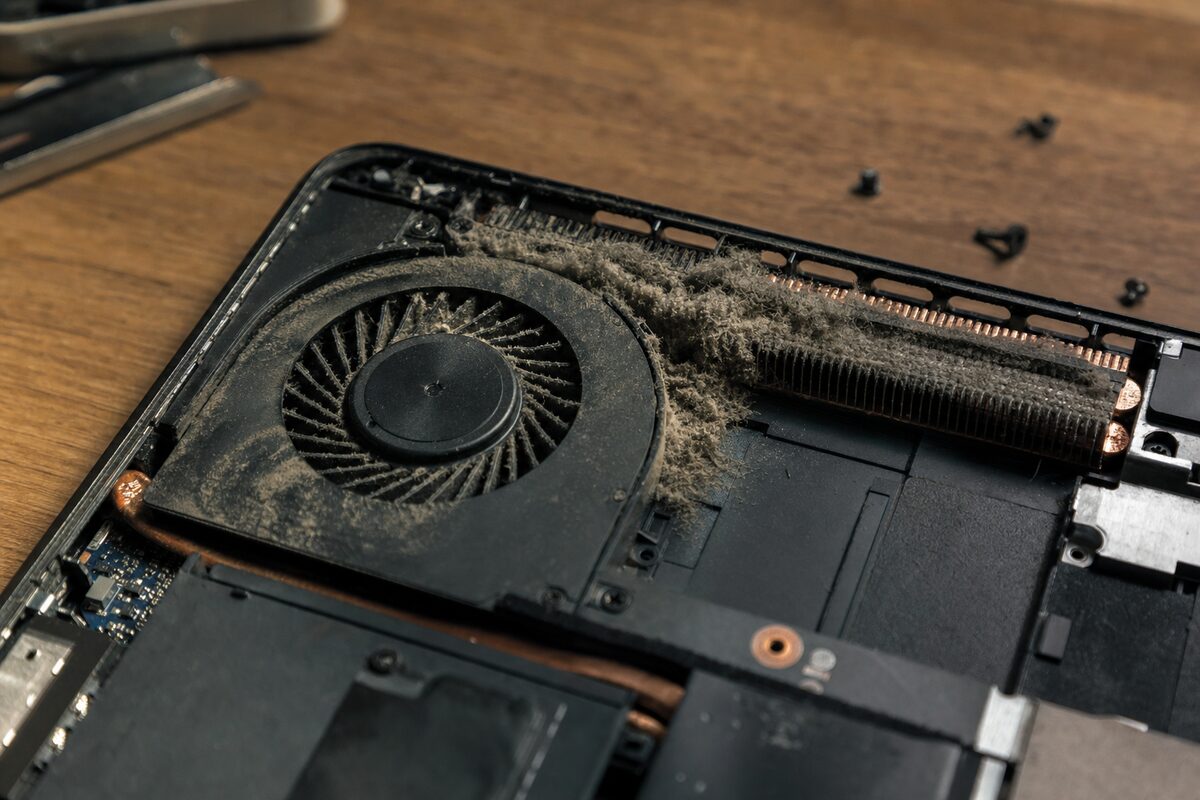
Margaret's laptop was a mid-range Windows machine, about six years old — well within the age range where this sort of thing becomes common. When we removed the back panel, the cause was immediately obvious.
The cooling fan was almost completely blocked. Over six years of normal use, a dense mat of dust, fluff and debris had packed itself into the heatsink fins — the little metal grid that the fan blows air through to carry heat away from the processor. What should have been a clear pathway for airflow was essentially a wall of compacted grey felt.
Beyond the blockage, there was a second issue. The thermal paste — a thin layer of heat-conducting compound that sits between the processor and the metal heatsink above it — had dried out completely. Thermal paste starts life as a soft, slightly greasy substance. After several years and thousands of heat cycles, it dries, cracks, and loses most of its ability to conduct heat. Where it should be bridging the microscopic gap between chip and heatsink, it was instead acting as a very mild insulator.
Both problems together meant the processor was generating heat it simply couldn't get rid of. Twenty minutes of normal use was all it took to push the temperature over the limit.
The Fix — and It Wasn't Complicated
The repair itself was straightforward, if fiddly:
- The heatsink and fan assembly were removed and cleaned thoroughly — compressed air to blast the dust out, a soft brush for anything stubborn.
- The old, dried thermal paste was carefully cleaned off the processor and the base of the heatsink using isopropyl alcohol and a lint-free cloth.
- A small, precise amount of fresh high-quality thermal paste was applied to the processor.
- Everything was reassembled and the laptop was put through a stress test — software that deliberately pushes the processor to 100% load for an extended period while we monitored the temperature in real time.
Before the repair, the processor was hitting 95°C within fifteen minutes under load — dangerously close to its maximum rated temperature of 100°C. After the repair, the same stress test held it steady at around 62°C. That's a very healthy operating temperature. The laptop ran for two hours without a single hiccup.
Why This Happens to Perfectly Good Laptops
Laptops are sealed, compact machines. Unlike a desktop PC — which has a roomy case and often several large fans — a laptop crams everything into a chassis only a centimetre or two thick. The airflow path is narrow and the components run hot. Every breath of air that passes through the system carries a tiny amount of dust with it, and over months and years, that dust accumulates.
Most people never open their laptops, which is completely understandable. There's no obvious reason to. Everything looks fine from the outside. But inside, the slow build-up of dust is quietly making the cooling system less and less effective, year by year.
Thermal paste degradation is a separate but related issue — it's simply a material that has a finite lifespan under repeated heating and cooling. Five to seven years is a reasonable guide for when it might need refreshing, though it varies by machine and usage.
The frustrating thing is that neither of these problems gives you much warning. The machine doesn't slow down noticeably at first. It doesn't throw up error messages. It just works fine — until it doesn't.
The Practical Lesson
If your laptop is more than four or five years old and you've started noticing any of the following, overheating is worth considering as a cause:
- The fan running loudly almost all the time, even when you're not doing much
- The underside of the laptop getting uncomfortably hot
- The machine slowing down significantly after a while, then recovering if you leave it
- Unexpected shutdowns or freezes that don't seem related to what you're doing
- Performance that's noticeably worse than it used to be
A laptop service — a proper internal clean and fresh thermal paste — is one of the best-value things you can do for an older machine. It's not glamorous. There's no new hardware involved. But it can genuinely give a laptop another two or three years of reliable life, and it costs a fraction of a replacement.
Margaret collected her laptop the following afternoon. She sent us a message a week later to say it hadn't crashed once, and that it felt faster than it had in years. It probably was — because for the first time in a long while, the processor was actually running at the speed it was supposed to, rather than throttling itself to stay cool.
Sometimes the fix really is that simple. You just need to know where to look.