You've probably got used to it by now. You open the laptop, start working, and within a few minutes that familiar whirring kicks in. It runs, and runs, and runs. Sometimes it sounds like a small hairdryer. You've learned to tune it out.
But here's the thing: a laptop fan that runs constantly is not normal. It's not just wear and tear, and it's not something to live with indefinitely. It's your laptop trying — quite loudly — to tell you that something needs attention.
The good news is that most causes are fixable, often cheaply. The bad news is that if you ignore the warning long enough, the repair bill gets bigger. Here's what's actually going on.
Why a Fan Runs Constantly in the First Place
Your laptop's fan has one job: keep the processor and other components cool enough to work safely. It spins up when things get warm, and it should spin back down when they cool off. If it never spins down, one of two things is happening:
- The laptop is generating too much heat and the fan is struggling to cope
- The fan thinks it needs to run even when the laptop is barely warm — usually a software or sensor issue
The first scenario is by far the more common — and the more important to address.
The Most Likely Culprit: Dust
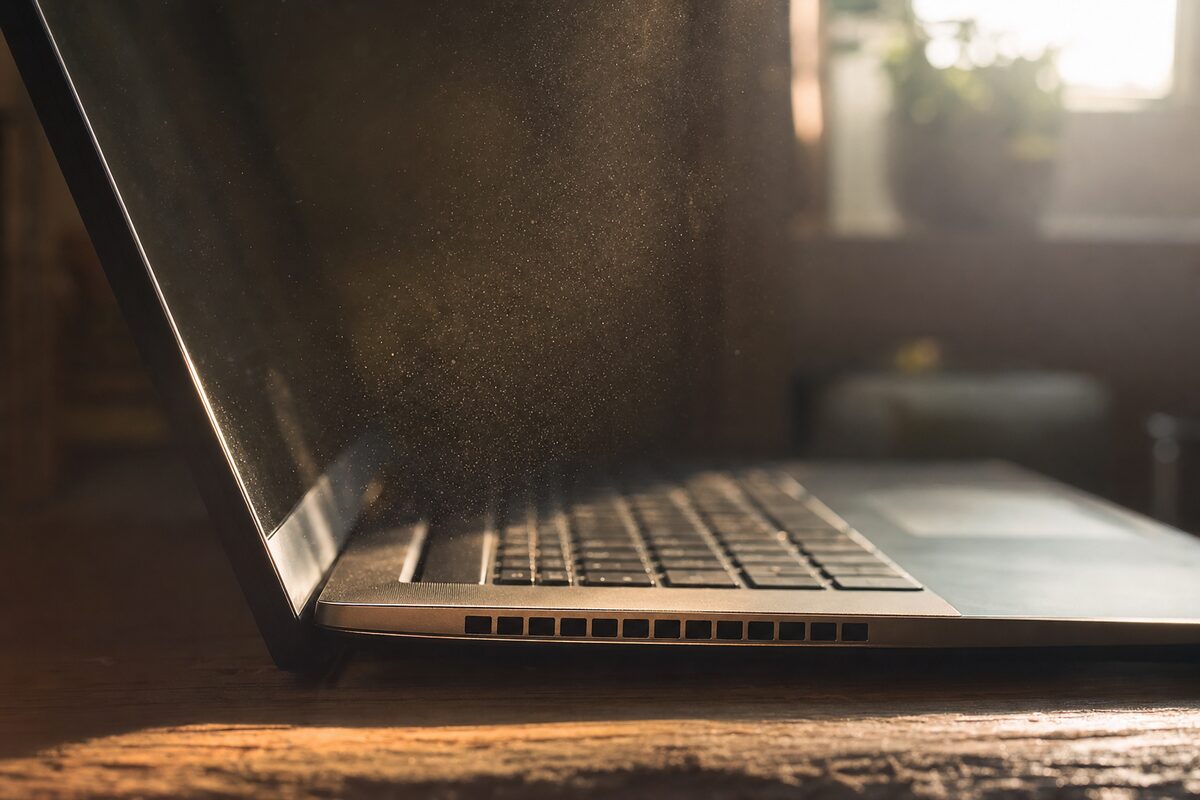
Inside every laptop is a small heatsink — a little block of metal that draws heat away from the processor — connected by a thin copper pipe to a fan and a vent. Over the years, dust builds up on that vent like fluff in a tumble dryer filter. Eventually, the airflow gets so restricted that the fan has to spin flat out just to shift enough heat to keep the machine running.
This is the single most common reason we see fans running constantly, and it's entirely fixable. A proper clean-out — which involves carefully opening the laptop, removing the dust blockage, and replacing the thermal paste on the processor — can transform a machine. Fans that haven't properly spun down in months suddenly behave normally again. Laptops that felt warm enough to poach an egg run cool to the touch.
If your laptop is more than two or three years old and the fan has been running hard, this is almost certainly your issue.
When Software Is Making It Work Harder Than It Should
Sometimes the fan isn't running because of a heat problem at all — it's because something on the laptop is hammering the processor unnecessarily.
Common culprits include:
- A browser with dozens of tabs open, especially if any contain video or animations
- A virus or piece of malware running silently in the background, consuming processing power
- Windows Update downloading or installing something in the background
- An antivirus scan that's kicked off mid-morning
- A rogue process that's crashed and stuck in a loop
You can check this yourself. On Windows, press Ctrl + Shift + Esc to open Task Manager, then click the CPU column to sort by usage. If something is sitting at 50%, 80% or 100% when the machine should be idle, that's your fan's fuel source. On a Mac, open Activity Monitor from the Applications > Utilities folder and look at the CPU tab.
If you spot a process you don't recognise chewing through resources, it's worth getting it checked — malware often hides in plain sight in that list. A virus removal job takes care of it properly.
The More Serious Warning: When Heat Causes Shutdowns or Slowdowns
Processors are designed to protect themselves. When they get too hot, they do one of two things: they throttle — deliberately slowing themselves down to generate less heat — or they trigger an emergency shutdown to prevent damage.
If your laptop suddenly feels much slower than it used to, especially when warm, throttling is probably why. It's not failing — it's self-protecting. But it's a sign that the thermal system needs attention before things get worse.
Repeated heat-related shutdowns, left unaddressed, can shorten the lifespan of the processor, the storage drive and other components significantly. If your laptop is switching itself off without warning, particularly after it's been running a while, don't keep restarting it and hoping for the best. Bring it in for a look.
Our laptop repair service covers exactly this kind of thermal work — it's one of the most common things we do at Advantec.
What You Can Do Right Now
Before booking anything in, a few quick checks are worth doing yourself:
- Feel underneath the laptop. If it's uncomfortably hot, that's not normal operation — that's a heat problem.
- Check Task Manager or Activity Monitor for anything chewing up CPU when the machine should be idle.
- Make sure the vents aren't blocked. Vents are usually on the bottom or sides. If you always use it on a soft surface like a duvet or sofa cushion, the airflow is being smothered every time you work.
- Restart the machine properly (not just closing the lid) and see if the fan settles down afterwards. Sometimes a process just needs clearing.
- Check how old the laptop is. If it's four or five years old and has never had a clean, it almost certainly needs one.
The Takeaway
A fan that never stops is a message, not a feature. In most cases the fix is straightforward — a proper clean, fresh thermal paste, and sometimes a software tidy-up — and it makes an enormous difference to how the machine feels to use. Cool, quiet, and fast again.
The worst thing you can do is assume it's just how the laptop is now. Left long enough, a heat problem that costs £50 to fix becomes a component failure that costs considerably more. The fan is doing its best to warn you — it's worth listening.