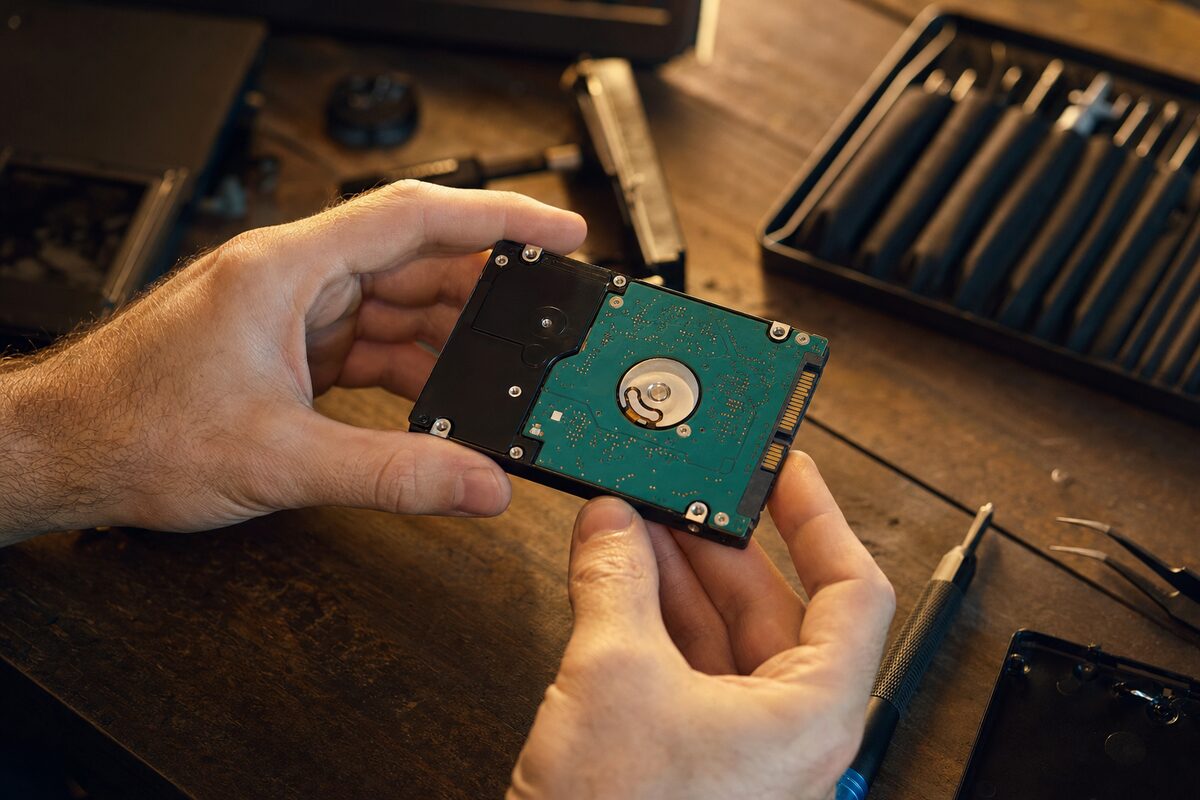
Almost every week, someone walks into the shop carrying a laptop and a slightly embarrassed look. "It started making a funny noise a while ago," they'll say, "but I thought it would be fine." Sometimes it is fine. More often, the hard drive has been failing gradually for weeks — and every file on it has been living on borrowed time.
Here's the thing nobody tells you: your hard drive almost certainly knew it was in trouble long before you did. It's been keeping a health diary the whole time. And there's a completely free tool built into Windows that can read it.
What Is S.M.A.R.T. — and Why Should You Care?
Every hard drive and SSD made in the last 20-odd years includes a self-monitoring system called S.M.A.R.T. (Self-Monitoring, Analysis and Reporting Technology). It tracks dozens of internal measurements — things like how many times the drive has had to re-read a dodgy sector, how many hours it's been running, whether the read/write head has ever bumped the disk surface, and how the drive's temperature has behaved over time.
Think of it as the black box flight recorder inside your storage. It's always running in the background, logging everything. The problem is that Windows doesn't surface this information anywhere obvious. It just quietly collects the data and says nothing — unless you know where to look.
How to Check Your Drive's Health Right Now
The quickest way to get a straight answer is to use a free tool called CrystalDiskInfo. It's been around for years, it's safe, it's lightweight, and it reads S.M.A.R.T. data directly from your drive and presents it in plain language.
- Search for CrystalDiskInfo in your browser and download it from the official site (crystalmark.info).
- Install and open it — no restart needed.
- Look at the coloured label at the top left: Good (blue) means all is well. Caution (yellow) means one or more values are creeping towards concern. Bad (red) means back up everything immediately.
- Scroll down through the list of attributes. Most will be green. Any that are highlighted in yellow or red deserve attention.
The whole thing takes about two minutes. You don't need to understand every attribute — the colour coding does the work for you.
The Numbers That Actually Matter
If you want to go a little deeper, a handful of S.M.A.R.T. values are particularly telling:
- Reallocated Sectors Count — When a hard drive finds a bad patch of disk, it quietly moves the data to a spare area and marks the original spot as unusable. A small number is normal. A rising count means the drive is running out of spare space to hide problems.
- Pending Sector Count — Sectors the drive suspects are damaged but hasn't been able to confirm yet. Even one or two of these is worth watching.
- Uncorrectable Sector Count — Sectors the drive has given up on entirely. If this is above zero on a traditional spinning hard drive, start a backup right now.
- Power On Hours — Not a warning sign by itself, but it tells you how much life the drive has had. Most spinning hard drives are designed for around 30,000–50,000 hours. Beyond that, reliability drops.
- Temperature — Drives run happily between about 25°C and 45°C. Consistently higher than that — often caused by a blocked vent or failing fan — shortens their life significantly.
What If Your Drive Gets a 'Caution' or 'Bad' Rating?
Don't panic — but don't ignore it either. A Caution rating doesn't mean your drive is about to die this afternoon. It means something has moved outside the normal range and deserves attention. Back up anything important, and get the drive looked at before it gets worse.
A Bad rating is more urgent. Stop installing updates, stop doing anything that writes large amounts of data to the drive, and focus entirely on getting your files copied somewhere safe. If the drive has already started clicking, grinding or struggling to be recognised by Windows, the window for a straightforward recovery may be closing fast. In those cases, a professional data recovery service is usually the right call rather than running any more software on it.
SSDs behave slightly differently — they don't click or grind, and their S.M.A.R.T. data looks a little different — but CrystalDiskInfo handles them too. The key figure to watch on an SSD is Media Wearout Indicator or similar (the label varies by manufacturer), which tells you how much write life is left in the flash memory.
When to Make This a Regular Habit
You don't need to check S.M.A.R.T. data every week. But doing it once every couple of months — or any time your PC starts feeling sluggish, takes longer than usual to open files, or makes an unfamiliar noise — takes two minutes and could save you from a very bad day.
If you want to be properly hands-off about it, CrystalDiskInfo has an option to minimise to the system tray and alert you automatically if a value changes. Set it up once and let it keep watch in the background.
The most common thing we hear after a drive failure is "I had no idea it was going to do that." In most cases, though, the drive did know — it just didn't have a way to tell anyone. Now you can ask.
If you find something worrying in CrystalDiskInfo, or you're not sure what you're looking at, a quick check with someone who does this every day is worth far more than waiting to see what happens. A laptop repair or PC health check can confirm whether you need a new drive, help you clone the old one before it goes, or simply give you peace of mind that everything's fine.