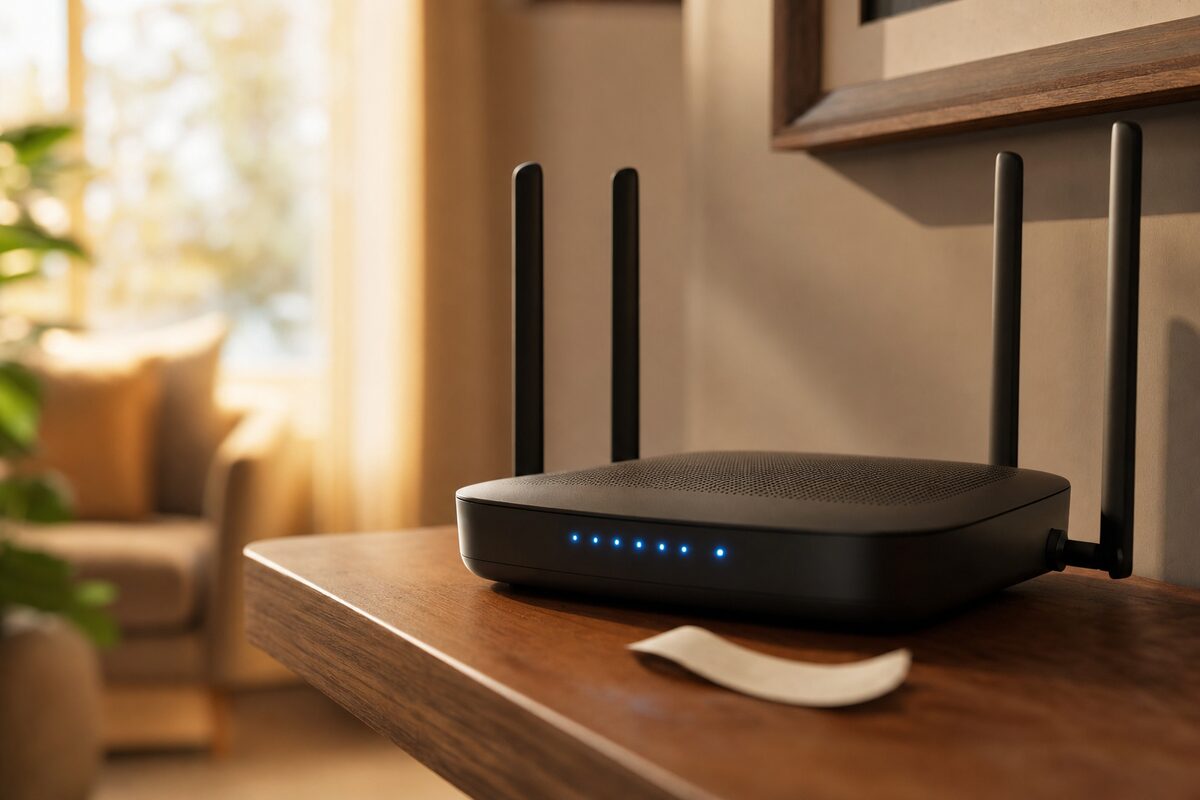
There's a label on the back or underside of almost every home router. It has a long, random-looking password printed on it — something like X7tK2mWq9nPr — and most people type it in once when they first set up their broadband, then forget it exists. Some people never even use that one; their provider came round, set everything up, and left the default in place.
Here's the thing: that label is still there. And anyone who's ever been in your home — a visiting friend, a tradesperson, a teenager who came round once for a study session two years ago — still has that password. Because it never changes.
This isn't a panic piece. Most people aren't being actively targeted by their neighbours. But a surprising number of slow-network complaints, odd devices showing up on home connections, and even some malware infections we see in the shop trace back to one simple root cause: a Wi-Fi network that's never been properly locked down.
What's Actually at Risk?
When someone is connected to your Wi-Fi, they're on your home network — the same one your laptop, phone, smart TV, and any work devices are on. That matters for a few reasons:
- Bandwidth theft. If a neighbour or former visitor is still connected and streaming video, your Netflix will stutter and your video calls will drop. It's one of the most common causes of mysteriously slow Wi-Fi.
- Network snooping. On an unsecured or poorly secured network, someone with basic technical knowledge can see what sites other devices are visiting.
- Access to shared folders and printers. Many home PCs have shared folders turned on. A device on your network can potentially browse those.
- A stepping stone for attacks. If your network is used to do something harmful online, the activity traces back to your address, not theirs.
None of this requires a sophisticated hacker. It mostly just requires someone who was once a guest and hasn't forgotten the password.
The Default Password Problem Is Bigger Than You Think
The password on the back of your router feels random and secure — and to be fair, it's better than "password123". But here's what most people don't realise: router manufacturers often generate those default passwords using patterns. Researchers have demonstrated tools that can predict the likely default password for certain router models just from knowing the router's serial number or MAC address — both of which are printed right next to the password on the same label.
Some older router models (especially those supplied by broadband providers several years ago) used genuinely weak default passwords, or even shared the same default password across thousands of units. If yours is more than five years old and still running its factory settings, it's worth a closer look.
How to Check Who's Actually on Your Network
Before you change anything, it's worth seeing what's there. Most routers let you log in via a browser — typically by typing 192.168.1.1 or 192.168.0.1 into the address bar. Your router's label usually shows the login address, username, and admin password (which is separate from the Wi-Fi password).
Once you're logged in, look for a section called Connected Devices, Device List, or DHCP Clients. You'll see a list of everything currently connected. Go through it:
- Your phone, laptop, tablet — easy to identify.
- Smart TV, smart speaker, doorbell, thermostat — these all show up too.
- Anything you don't recognise? That's worth investigating.
Unknown devices aren't always sinister — a smart bulb or a forgotten old tablet can look unfamiliar on a list. But if you see a device with no obvious explanation, changing your Wi-Fi password is the right first move.
How to Change Your Wi-Fi Password Properly
Inside your router's admin panel, find the wireless settings section. You're looking for the Wi-Fi password or WPA key field — not the admin login password, which is a separate thing.
When choosing a new password, aim for something:
- At least 12 characters long — longer is better.
- Not a word from the dictionary — even with numbers swapped in ("P@ssw0rd" is not secure).
- A random passphrase works well — three or four unrelated words strung together, like tangerine-compass-bucket-fold, are genuinely strong and easy to share with guests.
Once you save it, every device in your home will drop off the network and need reconnecting. Yes, that includes the smart TV, the printer, and the kids' tablets — set aside twenty minutes and do them one by one. It's a minor nuisance, but it's the digital equivalent of changing the locks.
While you're in the router settings, also check that the security type is set to WPA2 or WPA3. If it says WEP or WPA (without the 2 or 3), that's outdated encryption and should be updated if your router supports it.
One More Thing: Set Up a Guest Network
Most modern routers offer a guest network feature — a separate Wi-Fi network, usually with its own password, that gives visitors internet access without putting them on your main network. It's brilliant for exactly the situation described at the top of this article.
Give visitors the guest password. Keep your main network password to yourself and your household. If the guest password gets too widely shared, you can change just that one without affecting any of your own devices.
It takes about five minutes to set up in your router's wireless settings and is one of the most practical security improvements most homes could make right now.
The Practical Takeaway
You don't need to be paranoid about your Wi-Fi. But treating it like a front door — with a lock you control, that you change when the situation warrants it — is just sensible. If you've never changed your router's default password, or if you genuinely can't remember the last time you did, this weekend is a good time.
If you're not sure what router you have, can't find the admin login, or you've noticed unexplained slowdowns and want someone to take a proper look, the team at Advantec's business and home IT support can run through your network setup and help you get it sorted. It's one of those jobs that takes half an hour and buys you years of peace of mind.