Graham had already done his research. By the time he walked in with his tower PC under one arm and a printout of a £200 graphics card under the other, he was fairly certain he knew exactly what was wrong. His screen had started flickering badly a few weeks earlier — flickering, then corrupting into coloured horizontal bars, then going completely black. Classic dying GPU, right?
He'd watched the YouTube videos. He'd read the forums. He'd even told his son, who works in IT, and his son had nodded and said, "Yeah, sounds like the graphics card." Graham was just coming to us to have the new one fitted.
He was wrong. But in a completely understandable way — and the real cause is something that catches a lot of people out.
What Was Actually Happening on Screen
Before touching anything, it helps to watch the problem in action. Graham described the symptoms clearly: the display was fine for twenty minutes or so after boot, then the flickering would start, then the corruption, then blackout. Turning the PC off and leaving it for an hour would reset things temporarily. It was getting worse week by week.
That pattern — fine when cold, misbehaving as it warms up — is important. It doesn't exclusively point to a graphics card. It points to heat. And heat problems have several possible sources.
Opening the Case: The First Clue
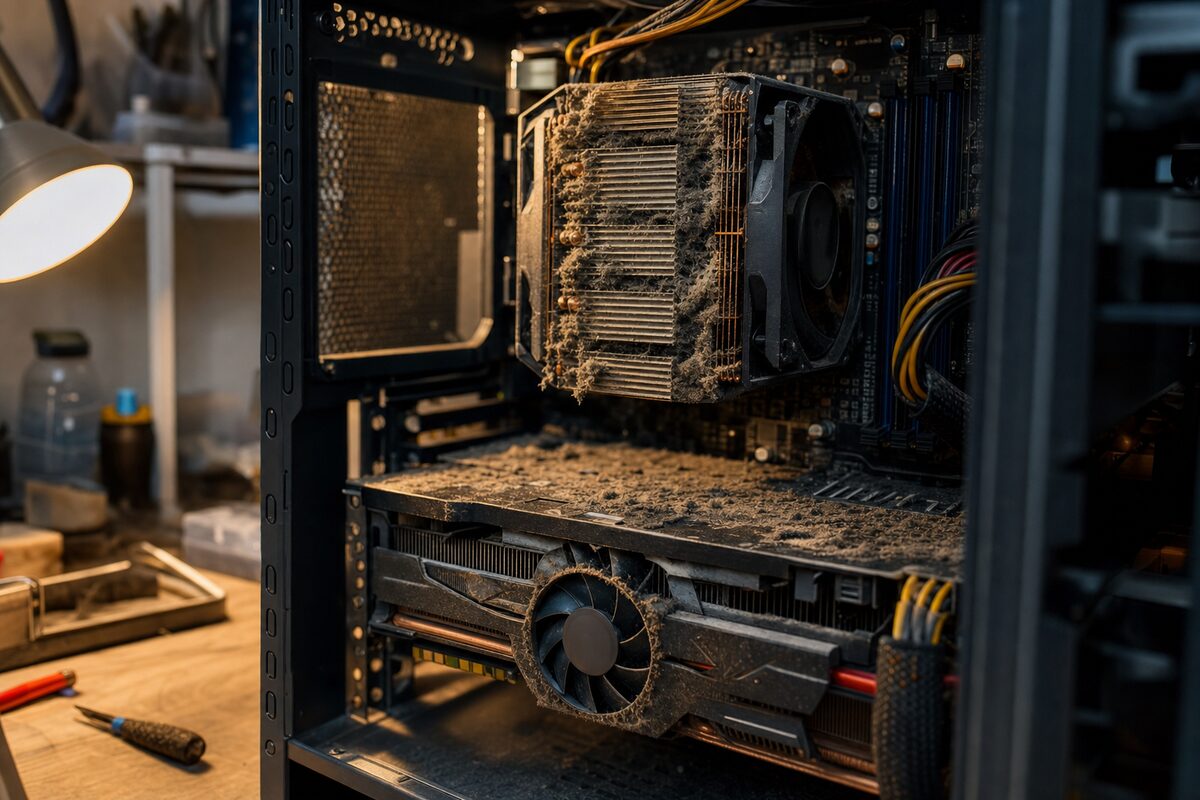
The moment we took the side panel off, the problem introduced itself. The inside of Graham's PC — a mid-tower he'd bought about seven years ago and never opened — looked like the inside of a tumble dryer filter. A thick grey blanket of compacted dust covered almost every surface: the CPU heatsink fins, the case fans, the power supply vents, and — crucially — the graphics card's own cooling fan, which had stopped spinning entirely. The fan wasn't broken. It was so clogged with fluff that it simply couldn't turn.
A graphics card that can't cool itself will overheat. When it overheats, it throttles its performance, produces corrupted output, and eventually shuts down the display to protect itself. Every single one of Graham's symptoms matched this perfectly.
The Diagnosis: Confirming Before Fixing
It would have been easy to just clean it out and call it done — and tempting, because cleaning is quick. But good diagnostics mean confirming your theory, not just acting on it. So before the compressed air came out, we used a small free utility called HWiNFO to log the GPU temperature in real time. We ran the PC for fifteen minutes under a light load. The GPU temperature climbed to 97°C. For context, most graphics cards start throttling around 83–85°C and will shut the display down well before they hit 105°C. At 97°C and rising, Graham's card was very close to the edge — and it wasn't even under heavy load yet.
That confirmed it. The card itself was fine. It was being cooked.
The Fix: Less Glamorous Than a New Graphics Card
Here's what actually happened to solve a problem Graham had been living with for weeks:
- The PC was taken outside and blown through thoroughly with compressed air — fans, heatsink fins, card cooler, PSU vents, every crevice.
- The graphics card was removed from its slot, and the fan checked by hand — once free of the compacted dust, it spun perfectly freely.
- The GPU's heatsink was carefully removed, the old dried-out thermal paste was cleaned off, and a fresh application of quality thermal compound was applied.
- The card was reseated, all connections checked, and the case reassembled.
We ran the temperature test again. Under the same fifteen-minute load, the GPU peaked at 61°C and settled there comfortably. We left it running for an hour. No flicker. No corruption. No blackout.
Graham's PC was absolutely fine. His graphics card was absolutely fine. The £200 replacement card went un-bought.
The Practical Lesson: Heat Is the Silent Killer
This kind of story comes through the door more often than you might expect — and the symptoms aren't always as dramatic as Graham's. Slow performance, random crashes, games that used to run smoothly now stuttering — heat is behind a surprising number of these complaints, and dust is behind most of the heat.
Desktops sitting on the floor, or tucked inside a cupboard, or just quietly doing their job for years in a room that sheds a lot of pet hair or carpet fibres — they all accumulate dust faster than most people realise. The machines are designed to manage heat, but not when their airways are blocked.
A few things worth knowing:
- Every one to two years is a reasonable cleaning interval for a desktop PC, more often if you have pets or a carpeted room.
- Don't use a household vacuum directly on components — the static risk is real. Compressed air canisters or a purpose-built PC blower are the right tools.
- If your PC is loud and then suddenly quiet, that's not good news — it may mean a fan has stopped rather than that things have calmed down.
- Symptoms that appear gradually and worsen over time often have a gradual, cumulative cause. Dust build-up is the textbook example.
- Free tools like HWiNFO or MSI Afterburner can show you your GPU and CPU temperatures right now, which is a useful sanity check if you're worried.
As for Graham — he left with his original PC running better than it had in years, plus the money he'd mentally set aside for a graphics card still in his pocket. He did admit, laughing, that he'd never once thought to open the case in seven years. Most people haven't. There's no reason you would, unless someone told you to.
If your desktop or laptop is behaving oddly — flickering, crashing, running hot, fans screaming — it's always worth letting someone take a proper look before assuming the worst. The real fix is very often far simpler, and far cheaper, than the one you've already worried yourself into.