A failing hard drive almost never gives you much warning. One day the computer is fine; the next, it freezes, clicks, refuses to boot, or simply hangs forever on a Windows logo. The way you respond in the first few hours genuinely affects whether your files come back.
Here's what we tell people who walk into our Tenterden shop in a panic. Some of it sounds counter-intuitive — but it's the difference between a frustrating few days and a permanent loss.
Signs your drive may be on the way out
- Clicking, ticking or grinding noises. Almost always a sign of mechanical failure on a traditional hard drive. The noises don't stop on their own.
- The computer freezes for long periods. Especially if the freeze is matched with a noise from the drive or a flashing drive light that never settles.
- Windows takes much longer than usual to boot, or doesn't boot at all.
- Files randomly disappear or refuse to open.
- You see "SMART error" or a similar warning on startup. Take these seriously — they're the drive itself telling you it's measured a problem.
- You see "No bootable device" or "Drive not found."
What NOT to do
This is the part most people get wrong, often with the best of intentions.
- Don't keep restarting the computer. Every boot attempt makes a failing drive work harder, and a clicking drive can lose more sectors each cycle.
- Don't run "disk repair" or chkdsk on a noisy drive. chkdsk is great for healthy drives with logical errors. It can be devastating for a drive that's failing mechanically.
- Don't install recovery software ON the failing drive. Anything you write to the drive can overwrite the very data you're trying to save.
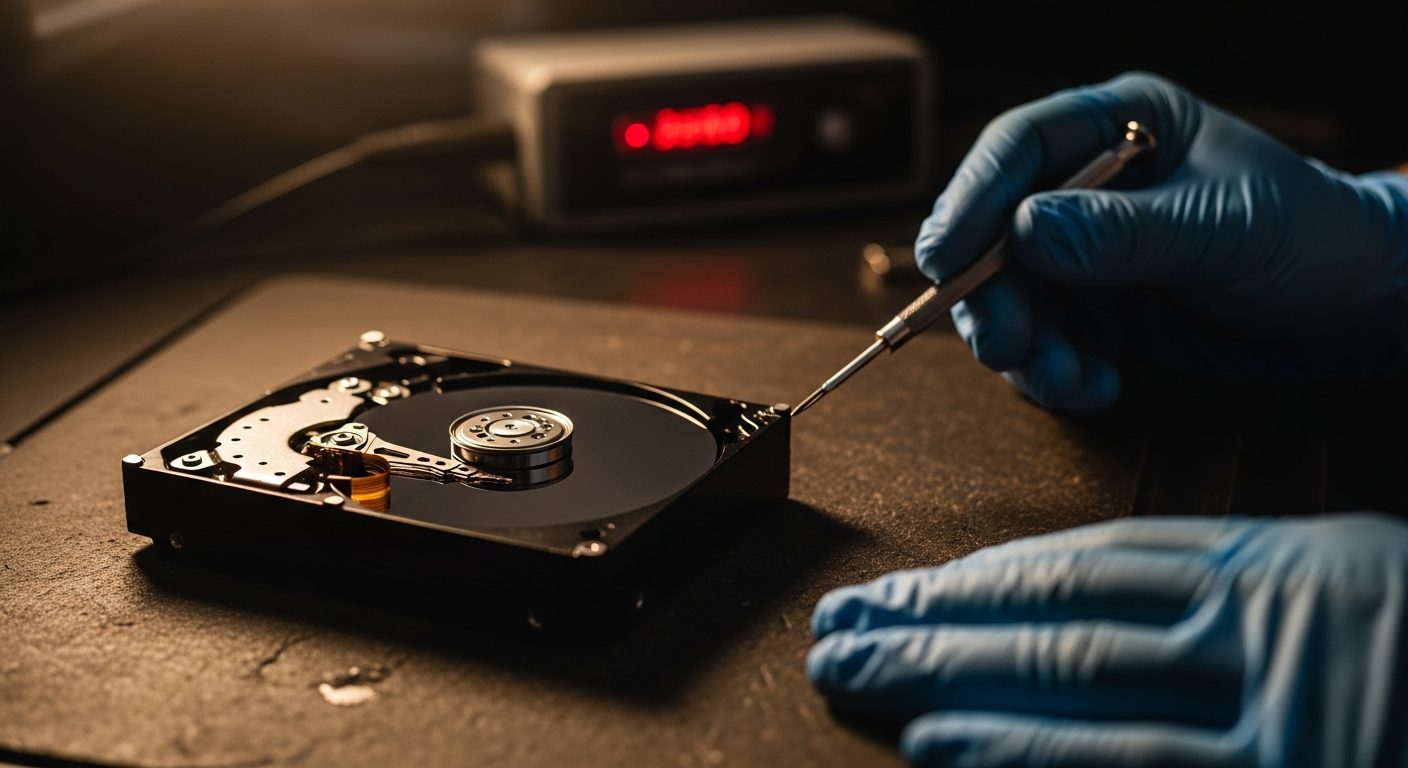
- Don't open the drive yourself. Hard drives are extremely sensitive to dust — opening one outside a clean environment usually destroys it permanently.
- Don't keep using the computer normally and hope it improves. It very rarely does.
What TO do — in order
- Stop using the device. Shut it down properly if you can, or hold the power button if it's frozen. The less the failing drive runs, the better.
- Check what backup you already have. Cloud syncs (OneDrive, iCloud, Dropbox, Google Drive) often hold copies of your important files. A working backup can change a panic into a routine repair.
- Make a list of what you'd most miss. Photos, work documents, accounts files, email. Knowing your priorities helps us focus the recovery on what matters.
- Get the device to someone who can look at it properly. The sooner the better. We can usually give a realistic view of what's recoverable within a short diagnostic.
What we'll do at the shop
When you bring a failing drive to us, our first step is usually NOT to power it up immediately. We'll talk through the symptoms with you, check the drive in a way designed to read it once rather than repeatedly, and try to image the readable parts to a healthy drive before anything else.
If your drive is making mechanical noises, the realistic options usually fall into one of three categories: simple recovery (good chance), challenging recovery (lower chance, more time, more cost), or specialist clean-room recovery (rare, expensive, last resort). We'll be straight with you about which category your situation looks like, before any chargeable work begins.
SSDs fail differently
If you're running an SSD rather than a traditional mechanical hard drive, the warning signs are different — and recovery is often harder. SSDs tend to fail more suddenly and more completely, without the gradual decline of a mechanical drive. The same advice applies: stop using it as soon as you suspect a problem, and bring it in.
The real lesson
Almost everyone who's lost files to a drive failure says the same thing afterwards: "I knew I should have set up a backup." If you're reading this and your computer is working fine right now, the single most useful thing you can do today is set up a real backup of the things you can't replace — photos, important documents, account files.
Cloud syncing services (OneDrive, iCloud, Google Drive) are often included with email subscriptions you may already have. We're happy to help set one up properly if you'd like — see our small business IT support page or just give us a ring on 01580 764404.